Company Contract Templates
This page will provide information and instructions for managing company-level contract templates in Site Specs.
Overview
Site Specs allows companies to develop their own custom contract template library where they can templatize and manage their company agreements including Subcontracts, Supplier Agreements, Trucking Agreements, Master Vendor Service Agreements, and any other type of agreement a company needs.
The company contract templates are housed in the My Company page on the website at https://app.sitespecs.io/my-company/contract-templates/active.
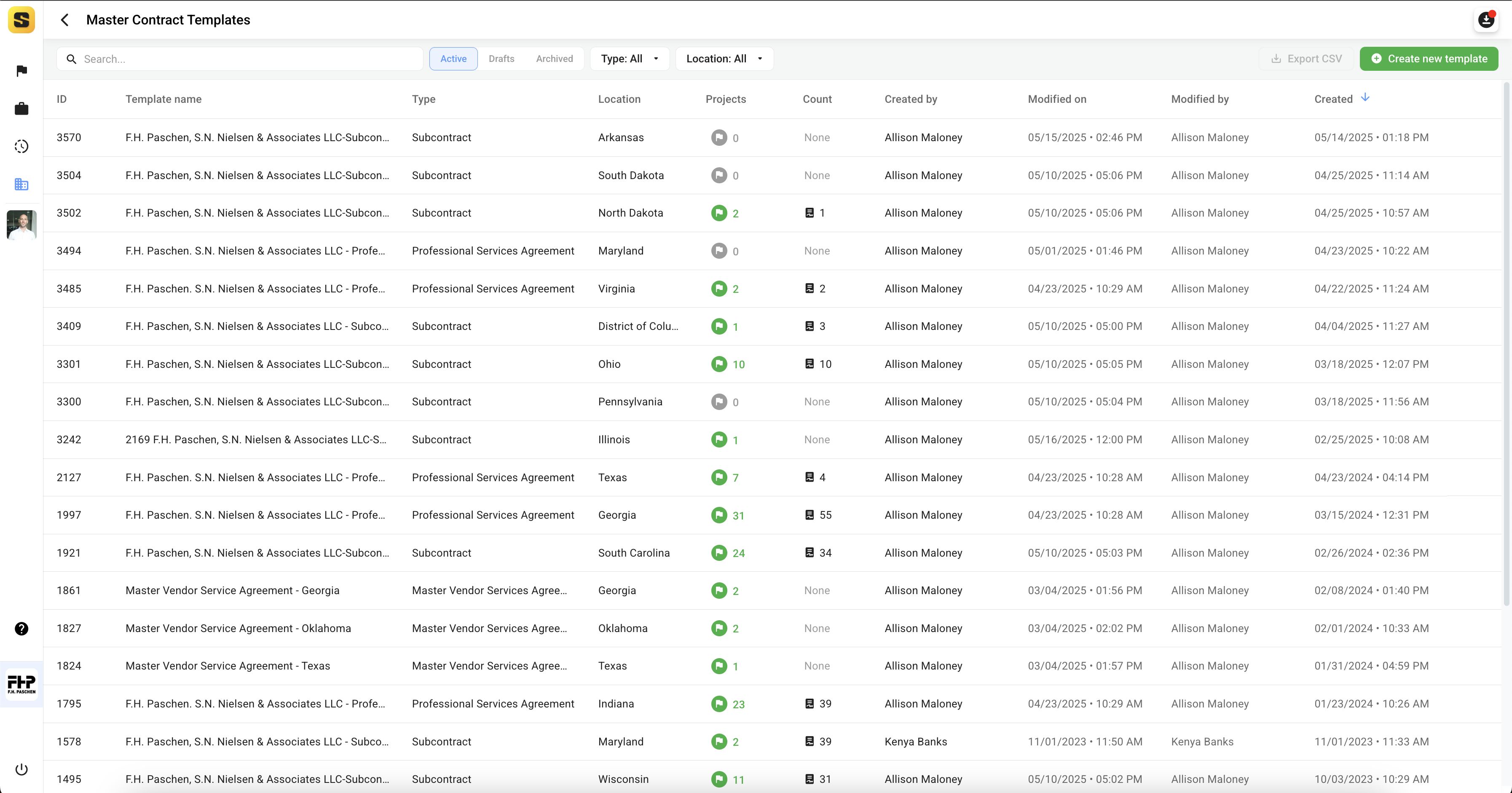
At the top of this page users will have the ability to search for their templates, toggle between Active, Draft, and Archived contract templates, filter templates by agreement type and location, as well as create a new contract template.

In the contract template table users can see what projects templates are being utilized on as well as how many have been issued to vendors. This allows company the ability to monitor usage and risk across their organization.
Steps
Generating a contract template
Users can click the 'Generate New Template' button on the top right corner of the view to generate a new template.
To create a new contract template first select the contract agreement type, the location the template pertains to, and assign a name for the contract template.
Agreement Type:
- Subcontract -Contract to provide labor and/or supplier services on a project
- Supplier Agreement - Contract to provide material supplier services
- Change Order - Change order agreement for existing executed subcontracts
- Subsecure - Subcontractor insurence
- Other - Any custom agreement/contract
- Professional Services Agreement - A contract for professional and/or consulting services
- Master Vendor Services Agreement - An agreement for standard rates and services that can be used across several projects
- Trucking Agreement - Trucking services
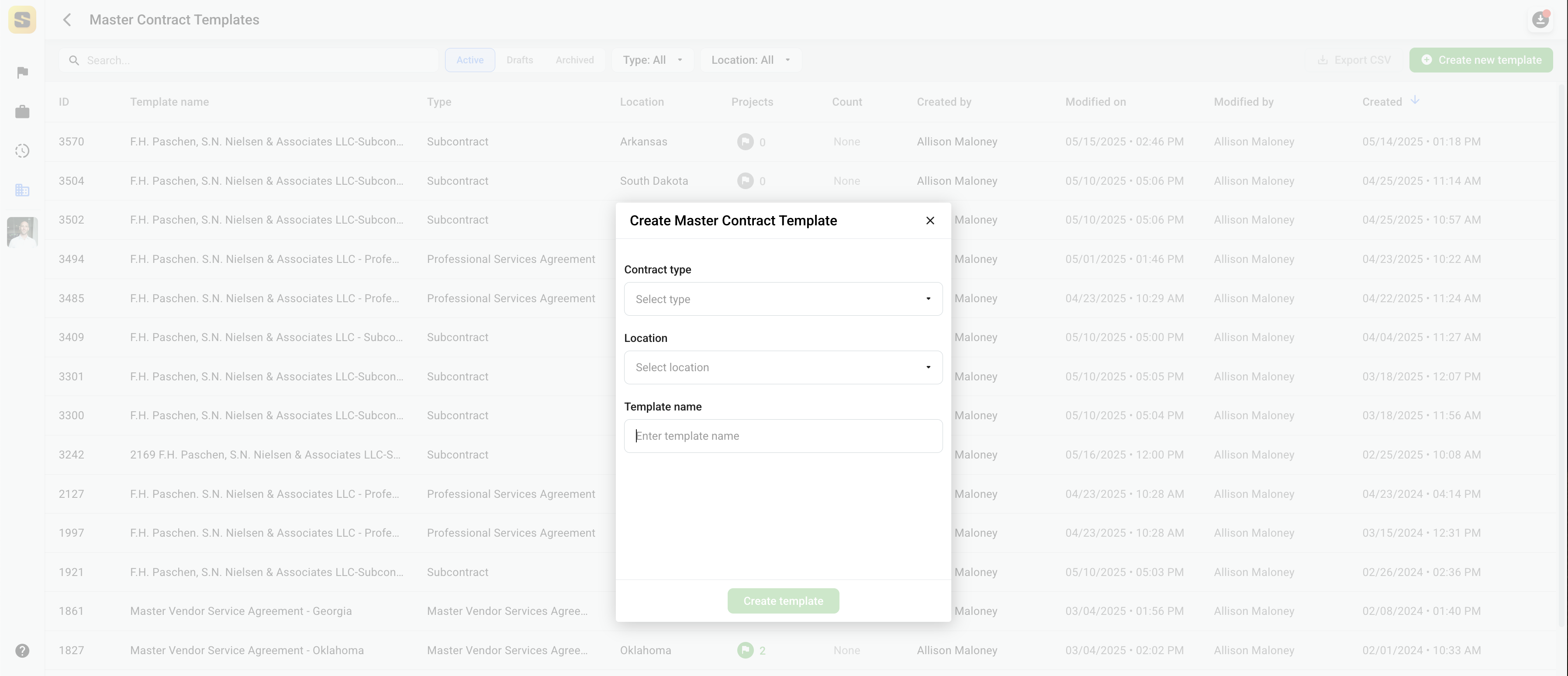
Once you create the new template draft you will be brought into the contract template editor view. Here users will see the template name on the top right and the template status. They will also see the table of contents on the left listing all the exhibits in the template. Below you will see the default list of Exhibits provided by Site Specs. These can be edited, removed and added as needed by your specific needs for each agreement type.
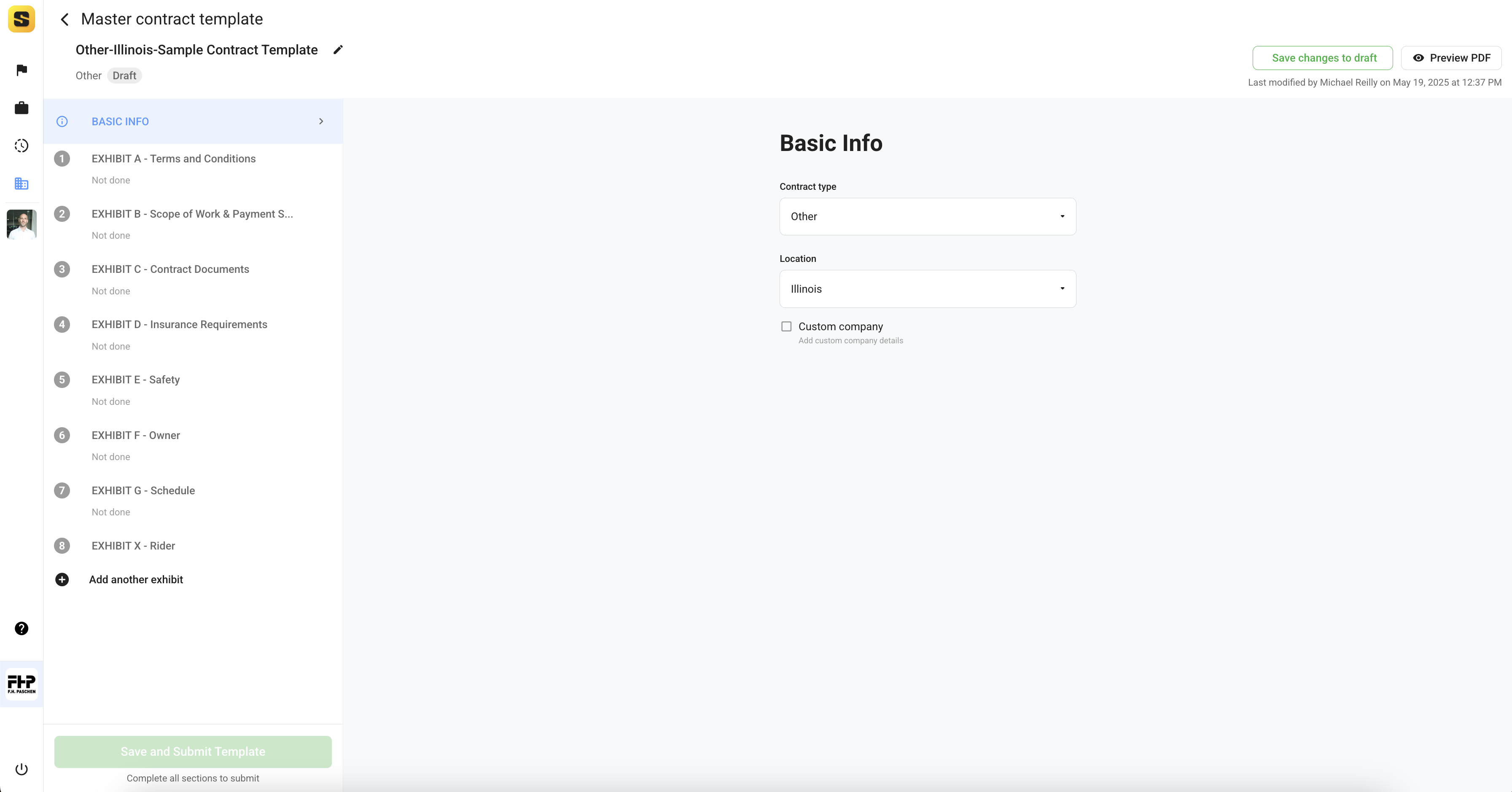
At any time during the editing of templates, the user can 'Preview PDF' to preview the resulting contract based on the current state of the contract template.
Each exhibit in the template can be edited independently. Each exhibit also has gives the user the ability to Lock the exhibit from being edited downstream by project teams. This allows companies to control and limit project teams from changing company required verbiage on their contract templates.
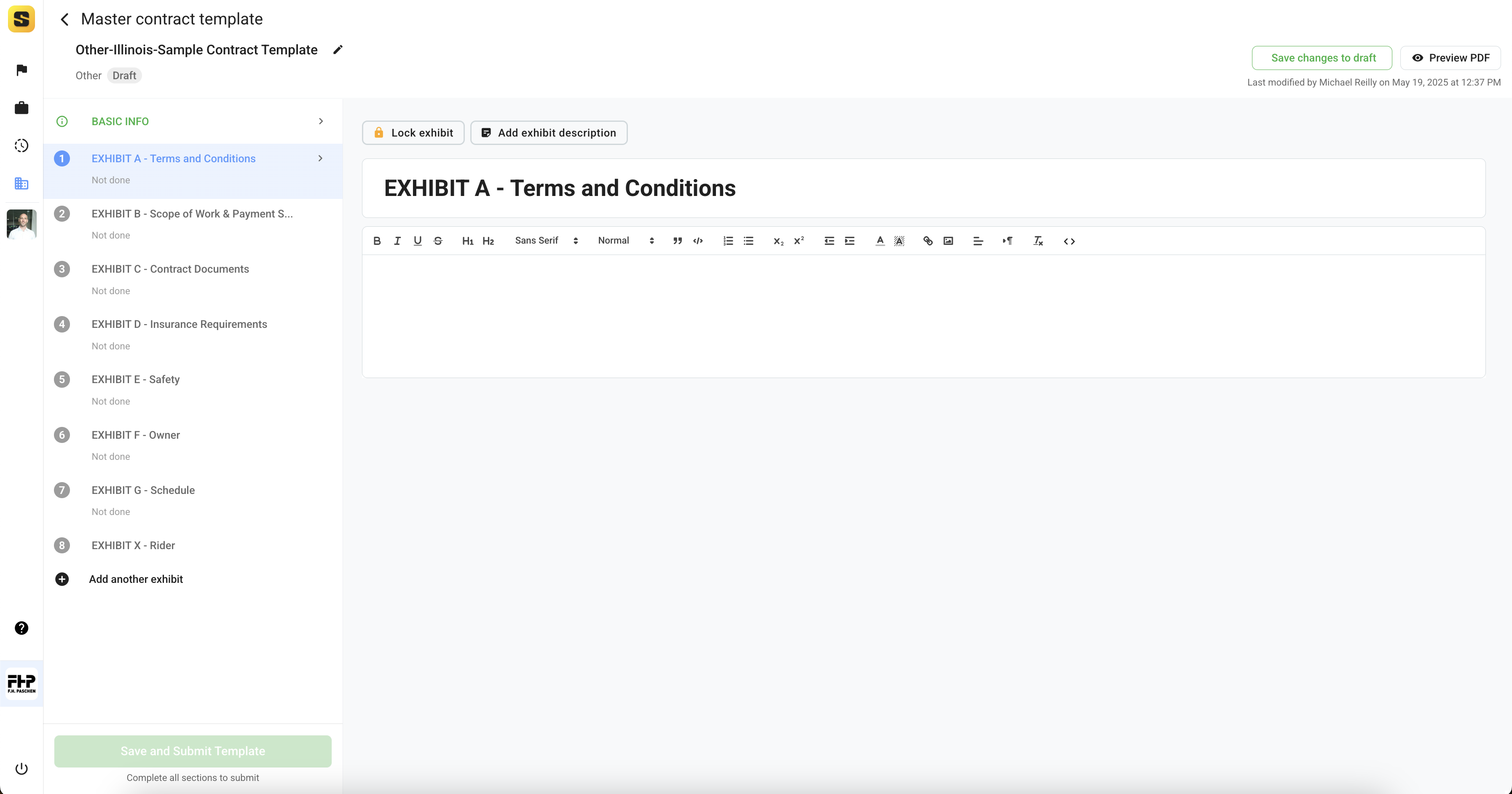
Each exhibit has an additional exhibit description text field which is for internal use only and will not be displayed in the contract document PDF. The purpose of this field is to give user on the project teams guidance as to the intended user of each contract template. This field is optional and should be used by companies at their own discretion.
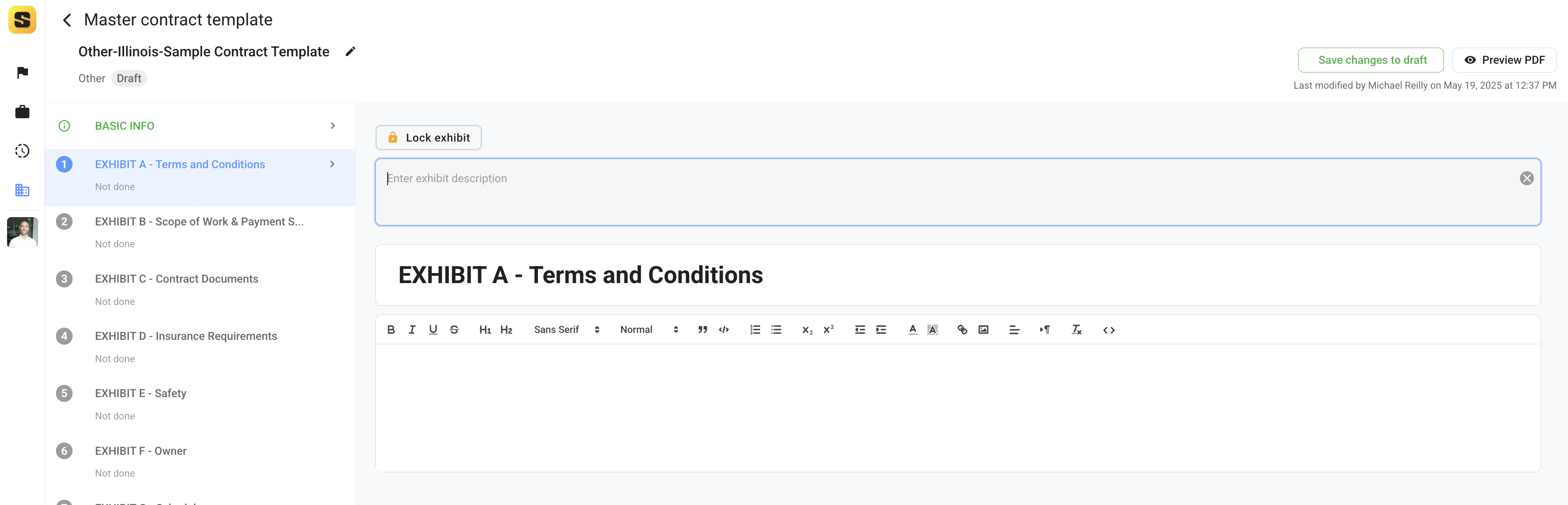
All exhibits are similar except for Exhibit B (Scope of Work & Payment Schedules) and Exhibit X (Rider).
Exhibit B - Scope of Work and Schedule of Values
This exhibit is special because it contains tables for users to itemize scope of work inclusions/exclusions as well as categorize and itemize payment schedules (schedule of values).
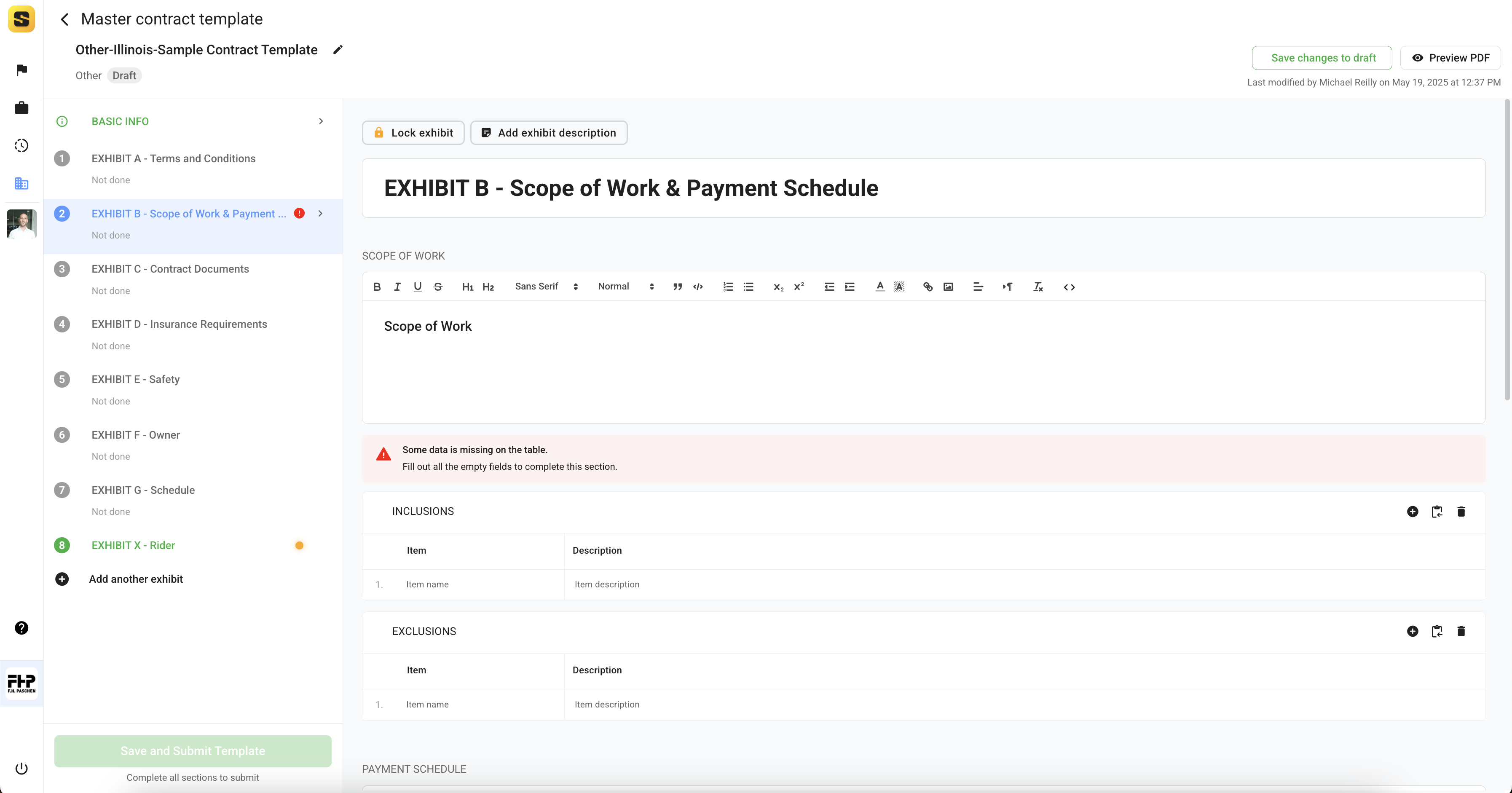
The Payment Schedule (Schedule of Values) has several categories line items can be included in. The purpose of this is to help clearly organize the schedule of values and identify which line items are included in the base bid contract value and/or unit prices allowances, liquidated damages, alternates, etc.
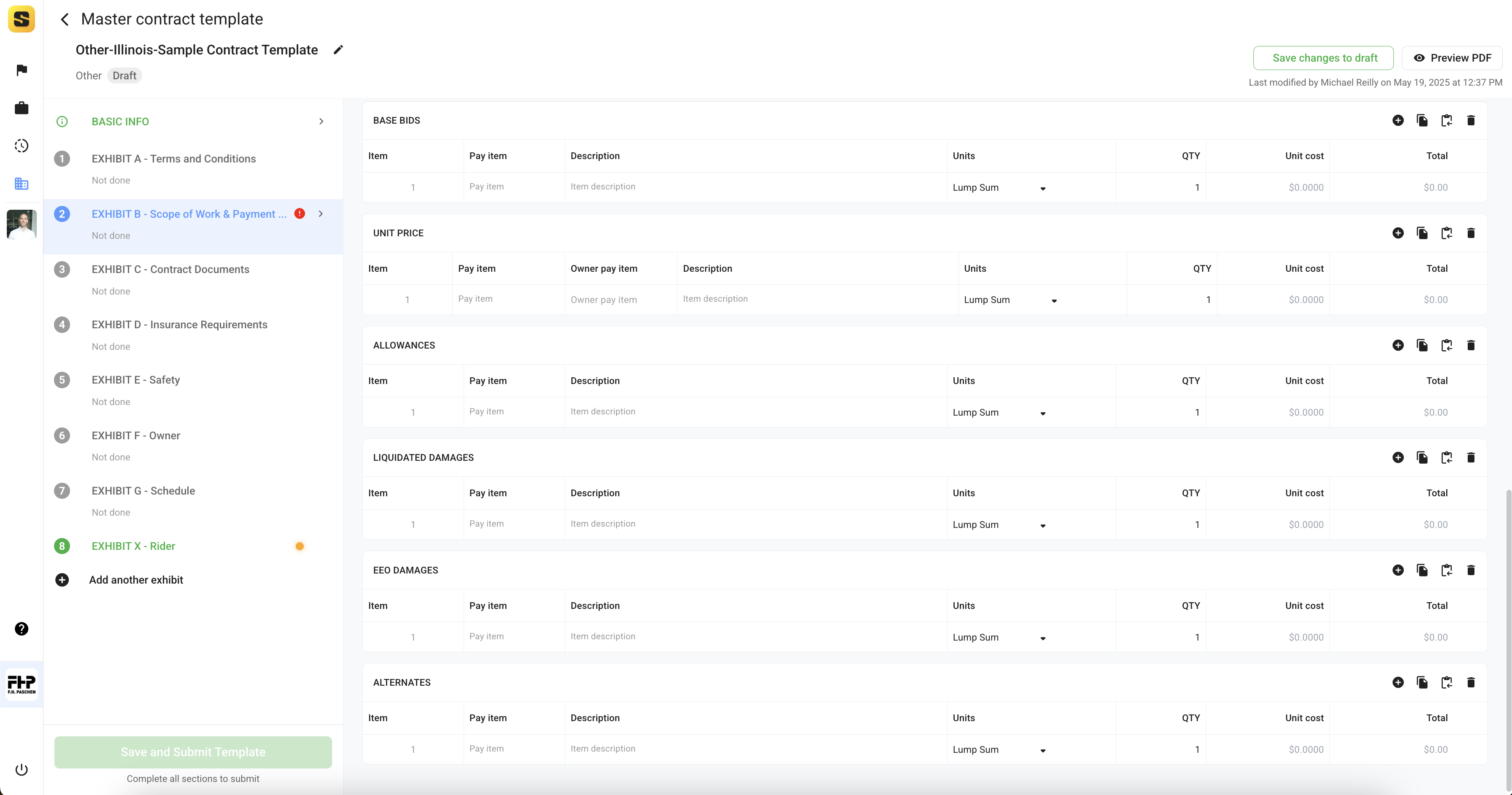
Above each table of SOW and SOVs users will notice the following options for populating the data.
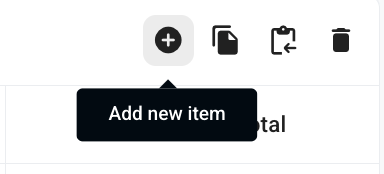
- Add new line item is used when users want to manually add a new line item.
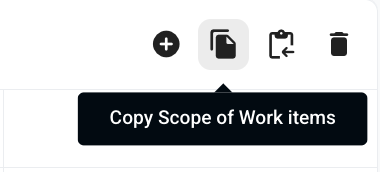
- Copy From Scope of Work is used in the Payment Schedules (Schedules of Value) when users want to add all the scope of work line items into the payment schedule and assign unit pricing. This is a time saver when the SOW is itemized the same as the SOV.
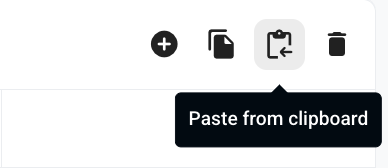
- Paste from clipboard is useful when a user has a csv/excel file with the schedule of values they would like to import without having to add each line and type in data individually.
NOTE: When pasting from clipboard users should have the exact same column headers ordered exactly the same as seen in Site Specs tables. Copy ONLY the data you want imported, NOT including the headers.
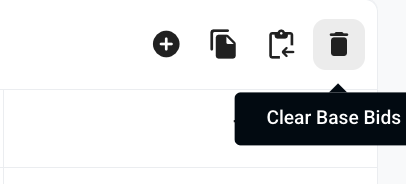
- This clears data that may have been erroneous pasted in the table to save time so users can start again without having to manually remove each pasted line individually.
Exhibit X - Rider
The Exhibit X is a special exhibit that is used to itemize exceptions to the contract. This exhibit is ofter used when subcontractors/suppliers do not accept your boiler plate terms and conditions and
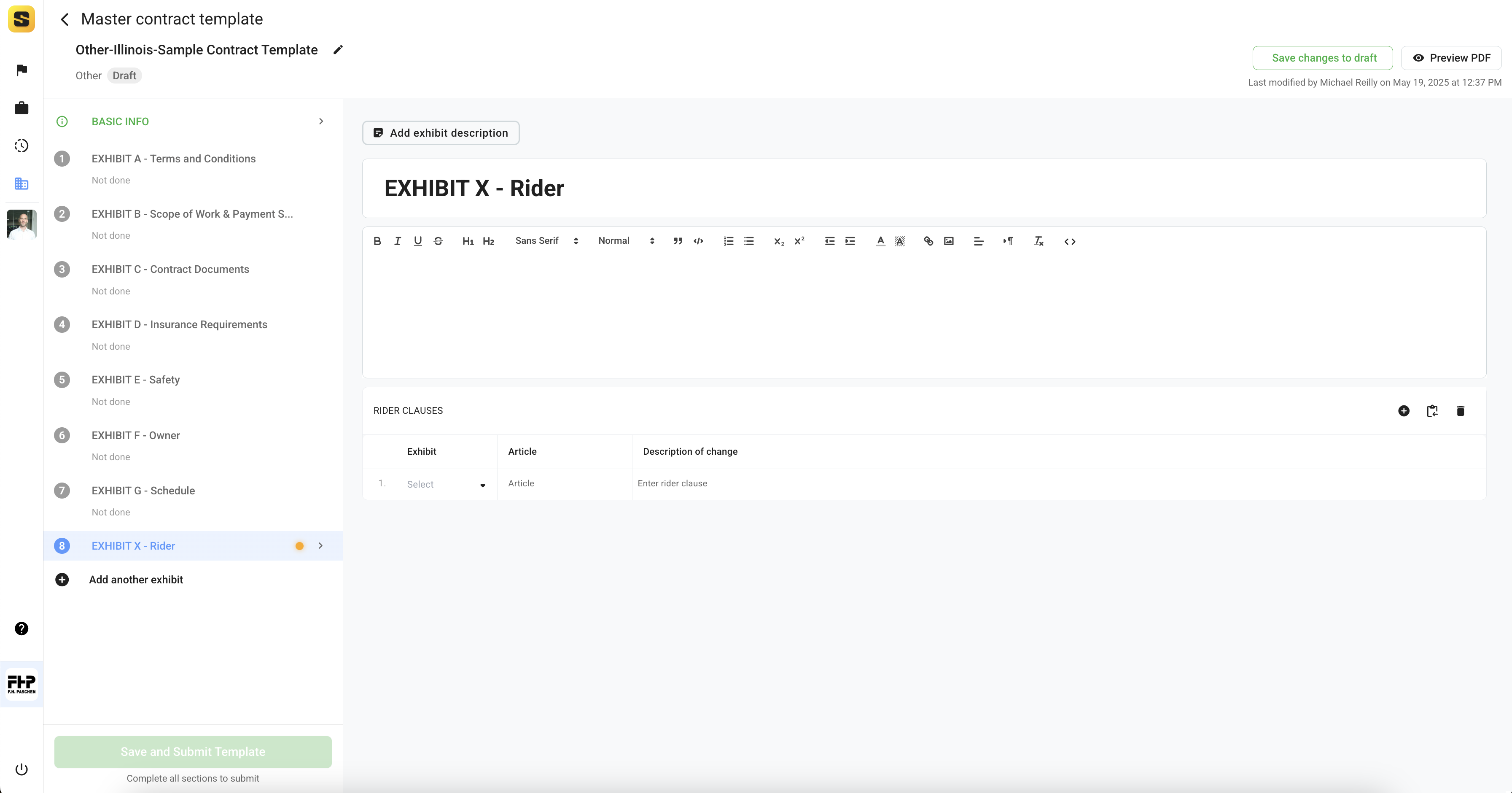
This exhibit will always be blank at the company level as this exhibit is intended for vendor specific clauses associated to them specifically and ofter project specific. More on Rider Clauses in the Sending Contracts from Templates.
Once users have completed customizing each of their contract template exhibits, they are encouraged to Preview PDF to confirm the formatting and completeness of the company contract template before clicking 'Save and Submit Template'. However, users can always edit and modify the templates at a later date.
Things to Consider
Each company has their own contract structure and organization. Please consult you legal department and create the best standard operating procedure for your company.
Issues or Questions?
Contact Support at Support@SiteSpecs.io or your legal/executive department with any questions