Submittals
Background
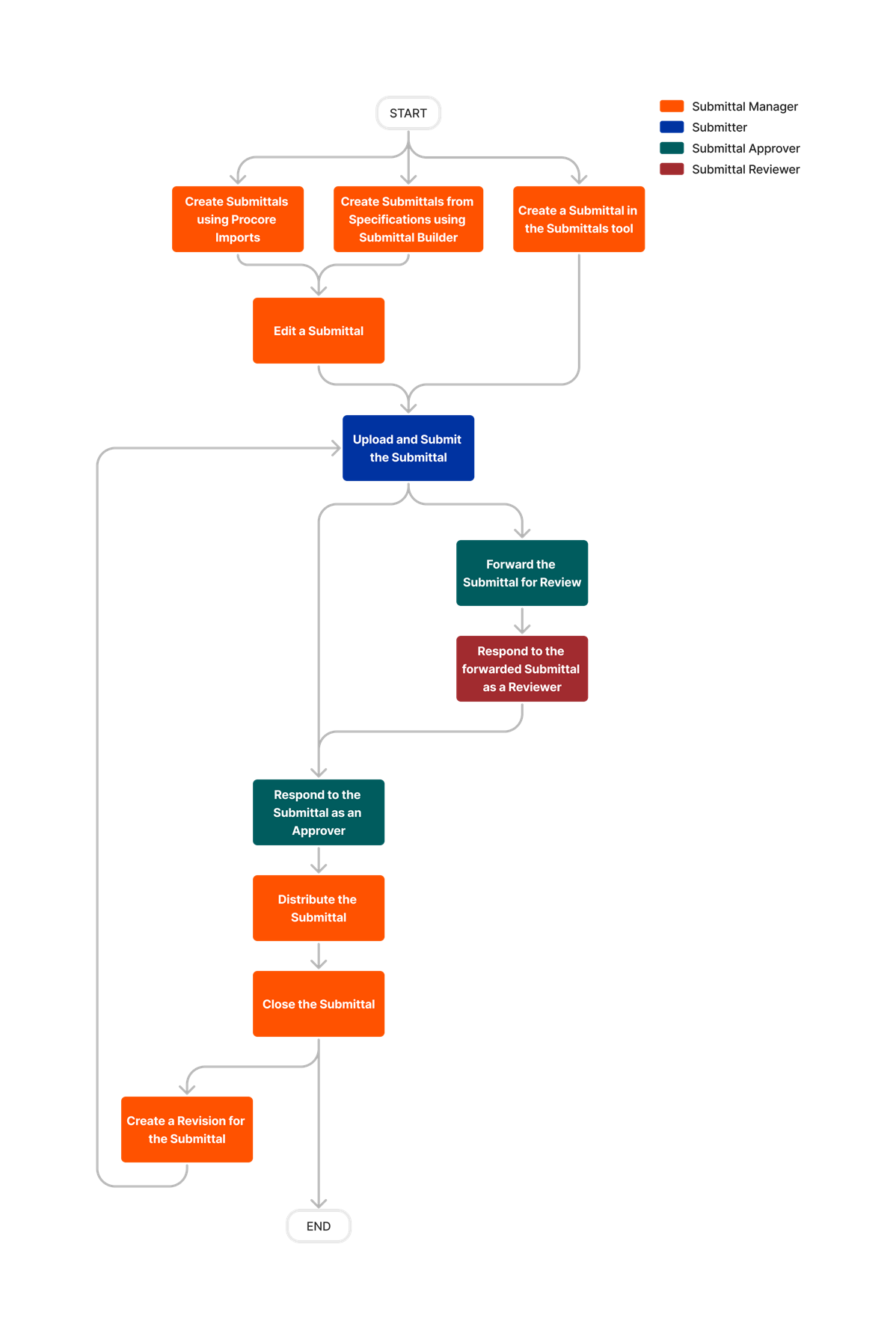
A submittal is provided for every product that is installed on the project. The project specifications are to be reviewed for all submittal requirements. If a submittal is listed in the specifications it should be included in the submittal list, no exceptions.
Submittal Settings
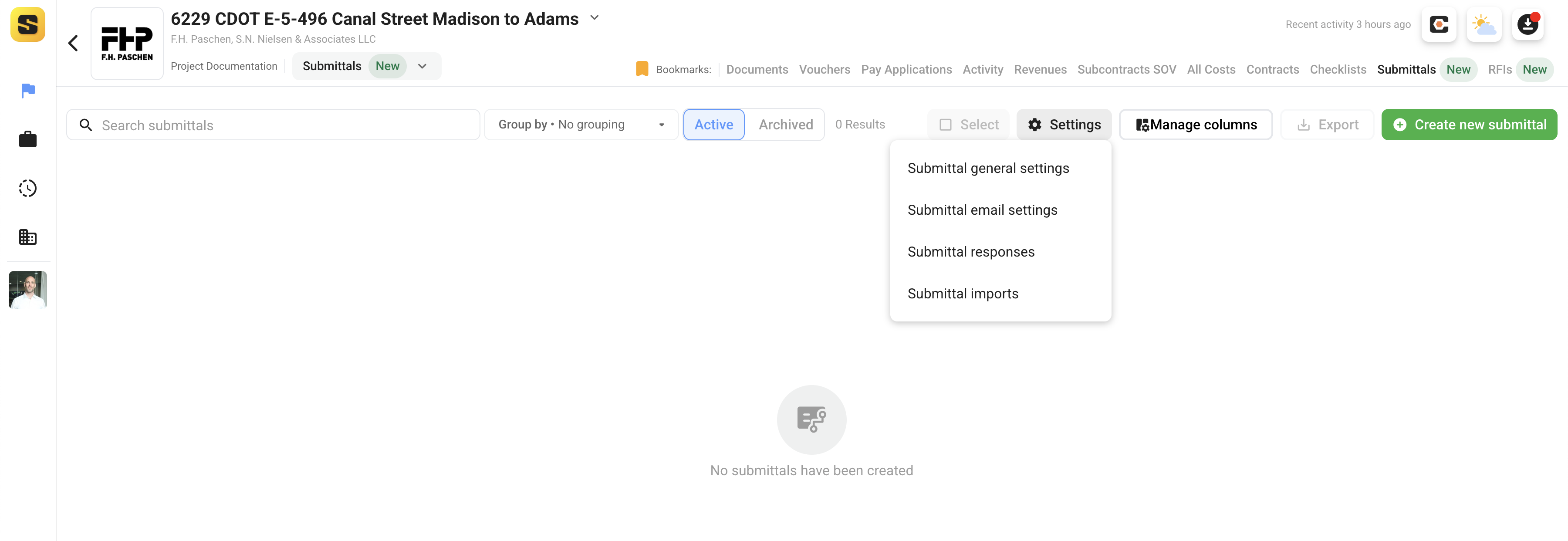
The first thing a user should do is review the Submittal Settings in your project to be sure all default settings are in place before processing any submittals. Users can navigate to the submittal settings from the Submittals tab within their project.
General Settings
The general submittal settings allow users to setup default values for many of the submittal input fields as well as automate workflows on the project.
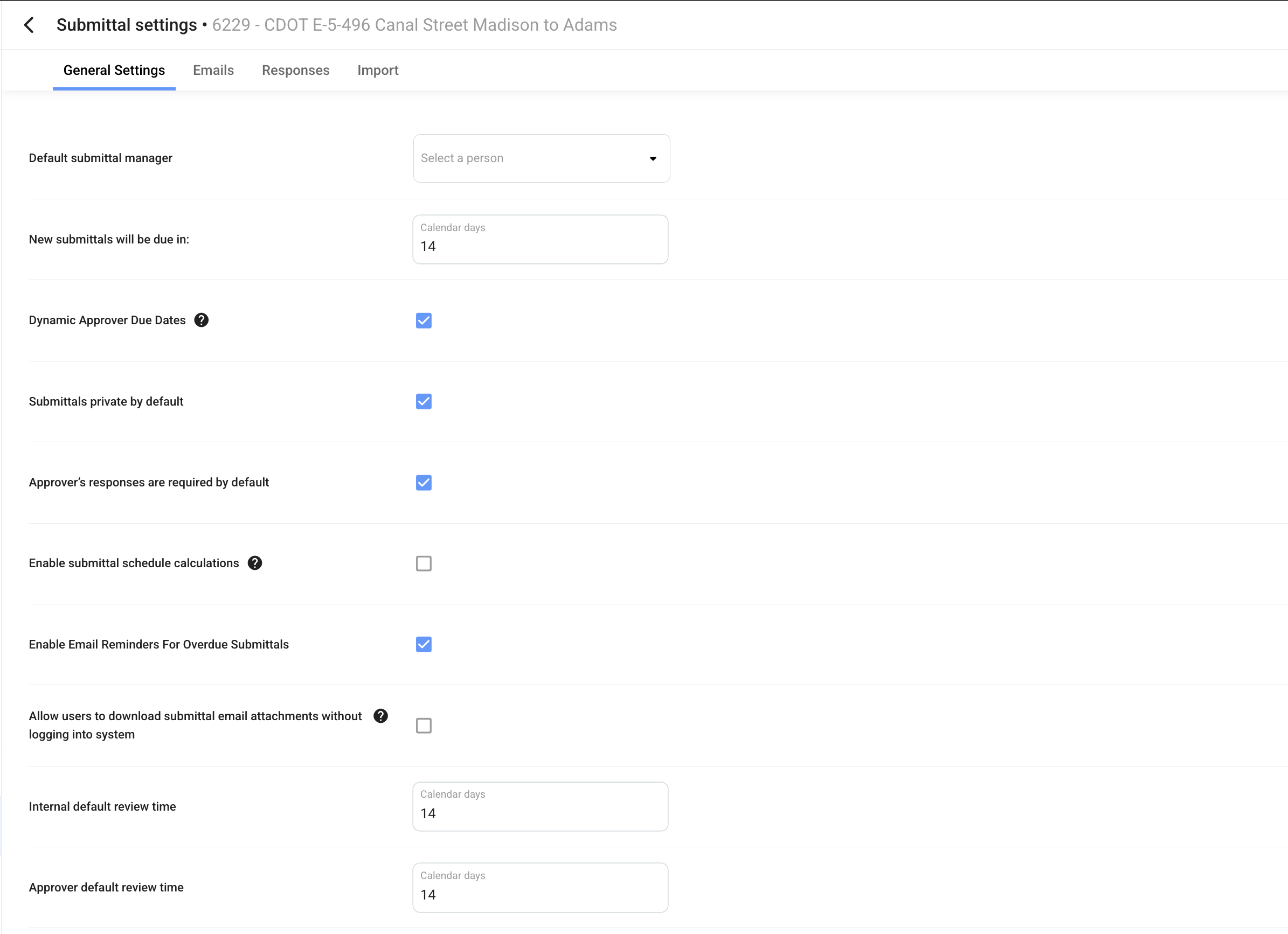
- Default Submittal Manager - Project Member who will be assigned as the manager for each submittal. Submittal managers have the ability to review the submittal on behalf of the approvers in the workflow which is useful if owner/AOR respond via email or in another owner software.
- New submittals will be due in - Is the default response due date when submittals are put in review.
- Dynamic Approver Due Dates - Allows due dates to adjust depending on when a workflow step begins.
- Submittals Private by Default - Makes submittals private and only visible to the members included in the workflow and distribution list.
- Approver's Responses are Required by Default - Requires each approver in the workflow to be required.
- Enable Submittal Schedule Calculations - Allows for estimating the response due date for each workflow step accounting for the required on-site date, lead time, and review time for each submittal.
- Enable Email Reminders for Overdue Submittals - Will send reminder emails to workflow members who ball-in-court is past due.
- Allow Users to Download Email Attachments Without Logging In - This allows users to download all submittal details and attachments directly from email links without logging into Site Specs.
- Internal Default Review Time - Default review time for your project team managing the project.
- Approver Default Review Time - Default review time allowed per approver step in the workflow.
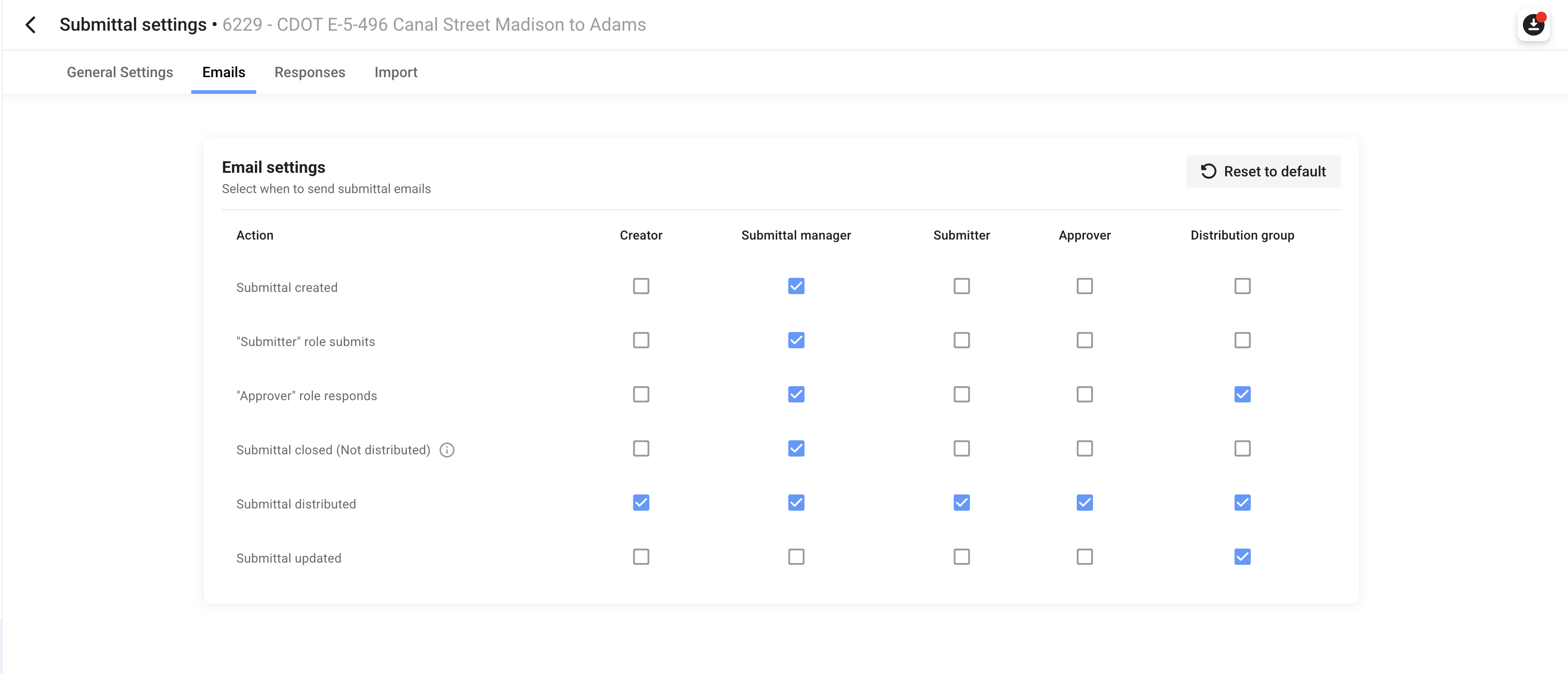
Email Settings
Email settings for submittals allow projects to customize what email notifications are sent to project members during the workflow of each submittal.
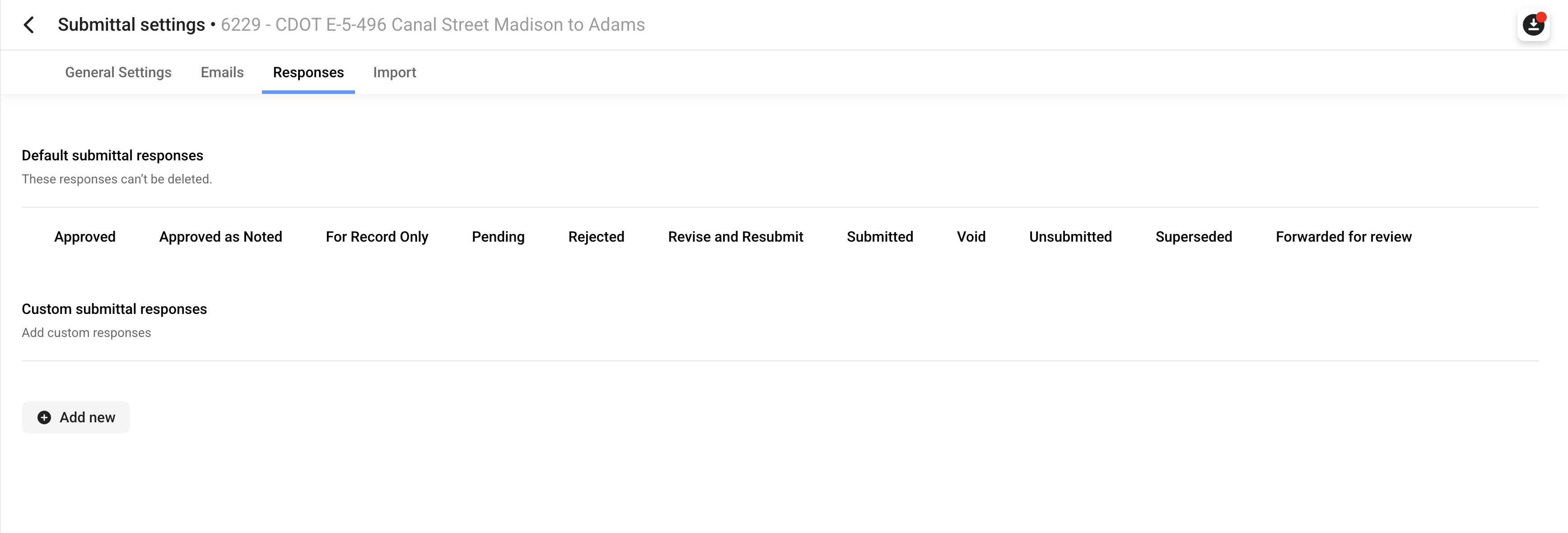
Responses
Response settings allow users to customize the available responses approvers in the workflow can chose for each submittal review.
Import
The Site Specs submittal importer allows users to compile their submittal log in an excel file and upload the entire submittal log at once.
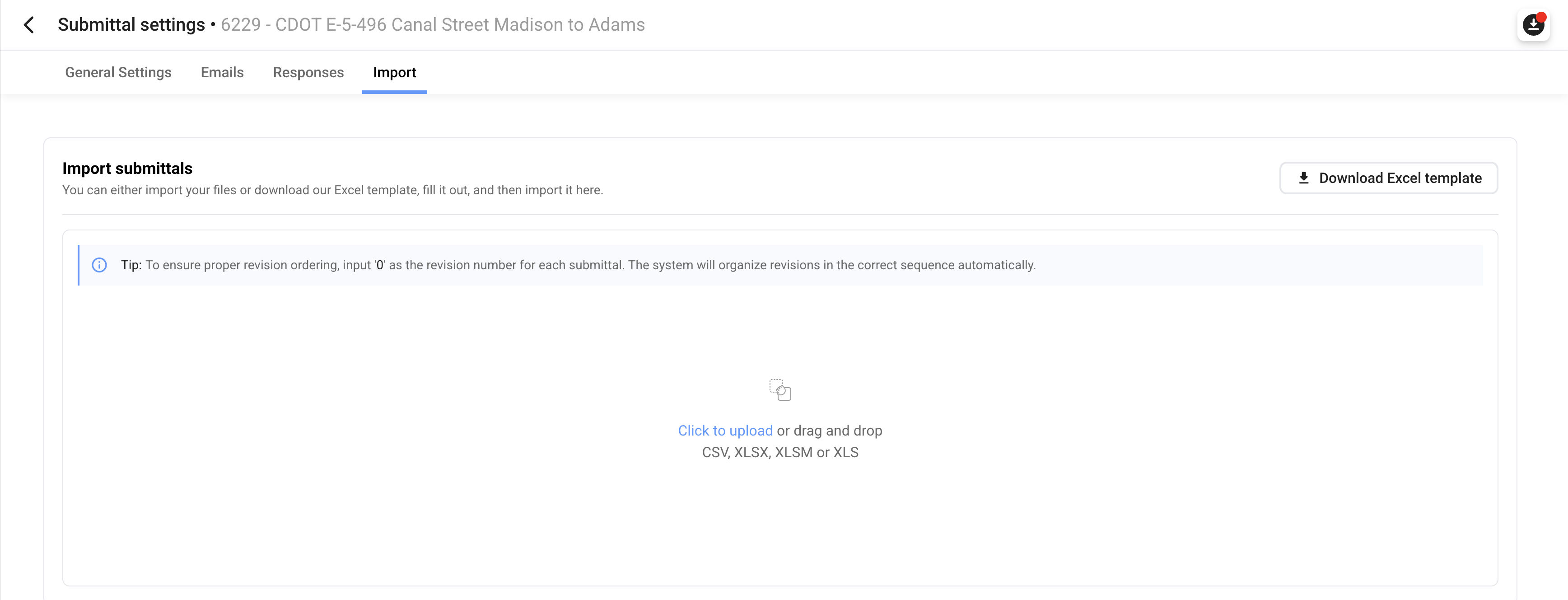
To use this, user's should download the template from this page by clicking Download Excel Template, review the column headers and input the data as completely and in a standardized way as possible. Not all columns of data are required.
Best Practices
The easiest way to generate your submittal log is to generate your submittals from the specifications, or to import a submittal log. Don't rush uploading your submittal log. Get it right the first time.
Creating a Submittal
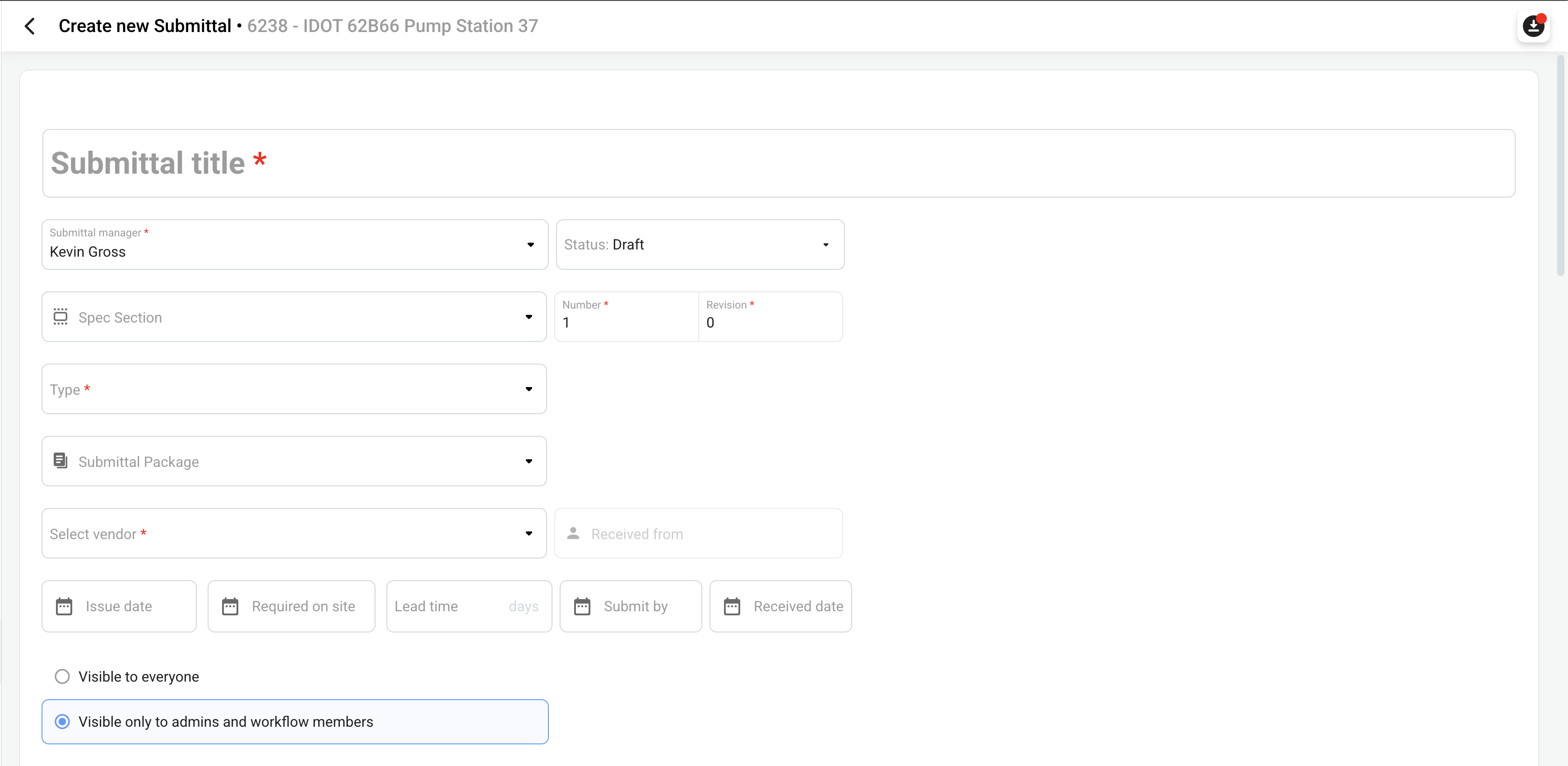
To create an individual submittal, navigate to the Submittals tab in your project and click Create New Submittal on the top right of your screen. you will see the following submittal creation form.
Fill in the tabs as they pertain to your project. Note the following:
- Title - A descriptive title using a standardized naming structure provided by your company or owner/OAR.
- Submittal Manager - The project member responsible for tracking and processing submittals throughout the workflow. The submittal manager has the ability to respond on behalf of workflow members and change the status as needed.
- Status - The status will be updated as the workflow is filled in throughout the workflow process. Submittals should be listed as a 'Draft' status when starting a project.
- Spec Section - Specification section requiring and specifying the submittal.
- Number - Number of the submittal in the project submittal log. Company's may have different standard operating procedures for numbering their submittals. Refer to yours.
- Revision - Revision number of this particular submittal. whenever a new version of the submittal is submitted for review a new sequential revision number should be assigned for proper documentation.
- Type - The type is used to identify what type of submittal is being submitted, i.e. product data, shop drawings, closeout, samples, etc.
- Submittal Packages - are set up depending on how submittals are to be grouped. An example of grouping is by specification section or by subcontractor. Packages are to contain all the related submittals that pertain to the grouping. Enter the information as instructed by your supervisor. For example, if you are using specification sections, you can enter '033000', for Concrete, however, if you are using subcontractors, you can enter 'STALW', for Stalworth Underground.
- Select Vendor - The vendor that is responsible for submitting this submittal for review. Typically the vendor supplying the material being reviewed.
- Received From - the contact from the vendor submitting the submittal.
- Dates - It is important to enter in the correct dates as this is how your company tracks time that the review is under by your company and the Reviewers. No submittal should be in your company's possession more than one (1) business day, either during first review prior to the Owner reviewing or after it is returned by the Reviewer. This is not to say the submittal is to simply be processed, it is in fact to be reviewed diligently by those in charge of review. Any questions should be reviewed with your supervisor immediately. Never process a submittal that hasn't been reviewed completely by someone at your company. This can cause both a time delay and cost issue.
- Visbility - Determines whether this submittal is visible to everyone, OR, only the individuals included in the workflow, distribution and the submittal manager.
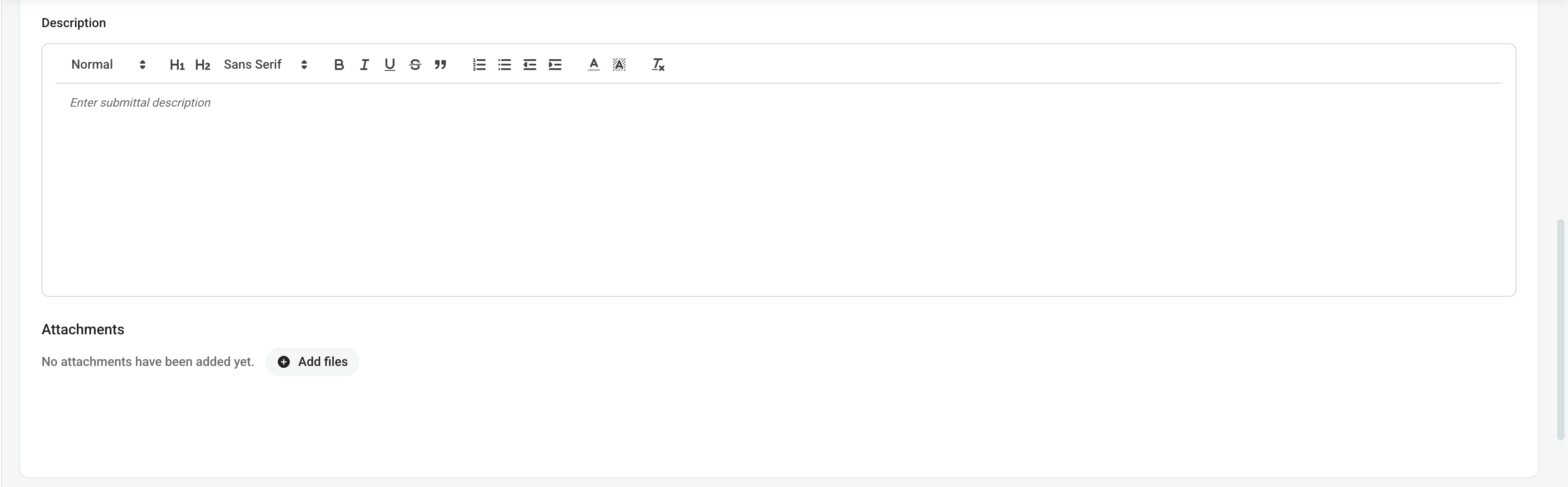
- Description - A description of the submittal including any specifications to note. This is typically copied from the specifications. The description section includes additional space for remarks, which can be useful, such as describing samples or where a product will be used.
- Attachments - Any product information, sketches, or additional documentation that will be reviewed and included in the submittal for review.
Submittal Workflow
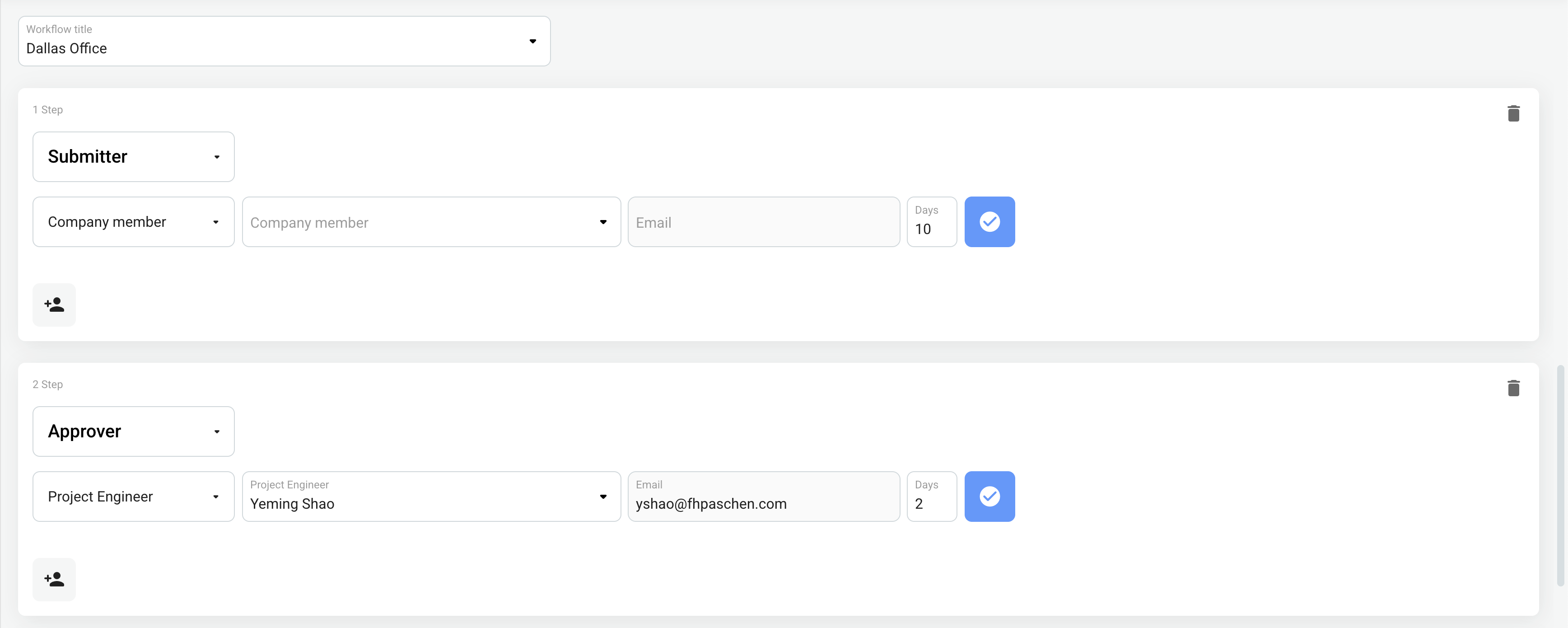
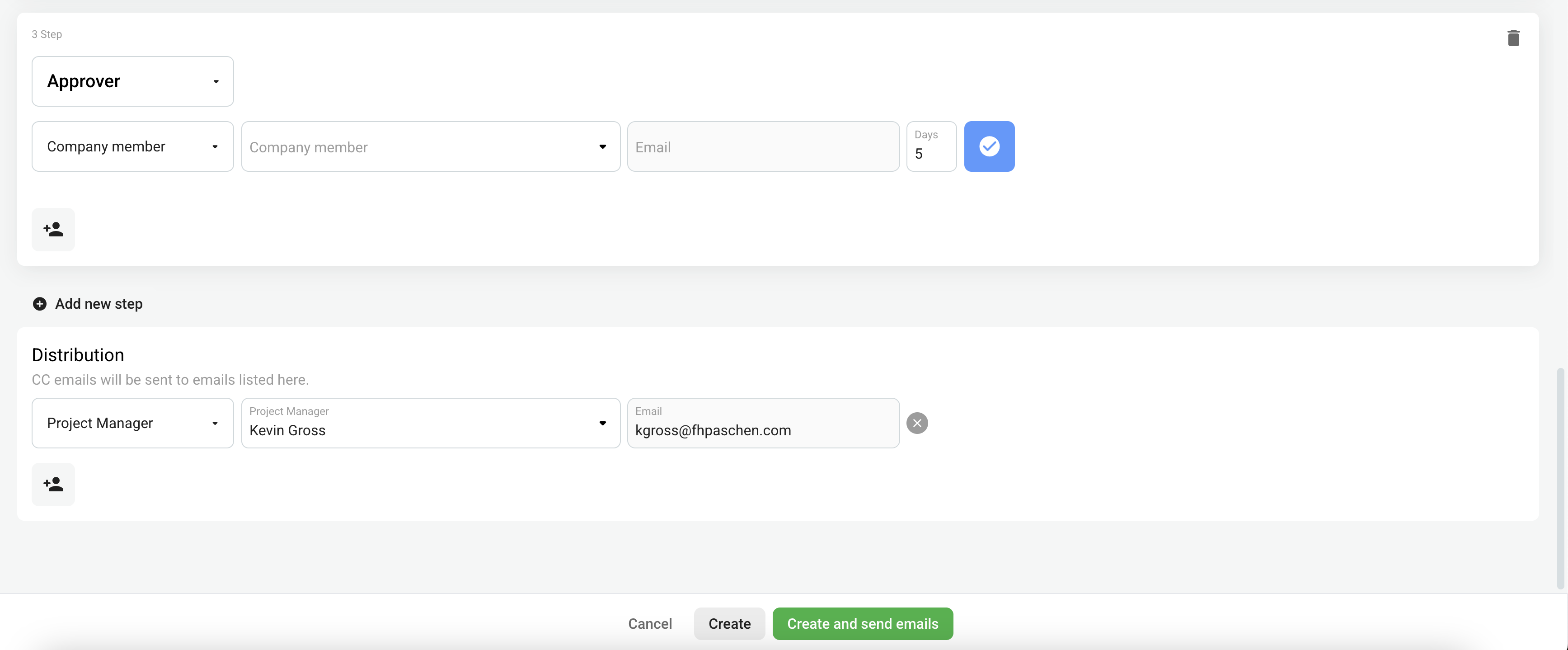
- If owner/client is utilizing Site Specs: Create a workflow template that can be applied to each submittal when bulk adding a subcontractor to a submittal package. The workflow should include the subcontractor as the submitter, next FHP as the approver, and finally the AOR/Client as the next approver.
- If owner/client is NOT utilizing Site Specs: Create a workflow template that can be applied to each submittal when bulk adding a subcontractor to a submittal package. The workflow should include the subcontractor as the submitter, followed by FHP as the approver. Note that when the owner client responds to the submittal include the date and comments as part of the response.
The distributions shows who will be notified when the submittal is submitted and returned. Additional subcontractors should be added to the distribution list as required for each submittal. Example if the electrical subcontractor will have to provide power for a mechanical piece of equipment, they will need a copy of the submittal.
Be sure to change the 'Status' of the submittal, when the submittal is submitted for processing. The submittal status is dictated by the stage it currently is in the submittal process.
Be sure to note that until a submittal is approved, in some fashion, the submittal will remain open and indicate a BIC (Ball in Court). You may need to review the status' available to make reports accurately reflect the information. Additionally, each time a submittal is returned and then resubmitted, a new revision is created. This will help keep track of material that is not acceptable and should not be on site, as well as tracking time should a delay be necessary.
When creating a new revision, be sure to complete the description section with the manufacturer/model/color of the submittal. This will print on the transmittals and helps quickly identify what item was approved, particularly if multiple revisions were required.
Be aware that subcontractor can create new submittals. New submittals can be tracked via the reporting tool.
When a submittal is received as Revise and Resubmit, Rejected, Approved as Noted Resubmit, a new revision should be created immediately when distributing the submittal.
File Naming
Some clients and architects have specified file naming conventions, the project team should discuss the file naming convention when setting up the Submittal log. If there is no specified naming convention the following should be used: SU_FHP_AL_2651002.0_LightingPD_20210602.
- SU = Submittal
- FHP = Company
- AL = The initials of whoever did the submittal
- 265100 = First part of the submittal number (spec section) generated on the Site Specs Cover Page
- 2.0 = Is the number submittal within the specification section. This is also generated on the Site Specs Cover Page. The "." will change as revisions are made to submittals.
- LightingPD = Short Description of what the submittal is
- 20210602 = The date in which the submittal is sent to the AOR.
Submitting a submittal in Site Specs
- Create a new submittal on Site Specs OR edit the submittal already created from the submittal log generated from the importer at project start up.
- Fill in the tabs as they pertain to your project.
- "Status"
- "Responsible Contractor"
- "Received From"
- "Issue Date" This is the date we are sending the submittal to the AOR
- "Received Date" This is the date we received the submittal from the subcontractor.
- "Lead Time"
- "Type" indicate the type of the submittal. i.e Product Data, Shop Drawing, O&M etc.
- "Submittal Workflow"
- Transmitting the Submittal
- FHPs preferred method: Attach the relevant files in the submittal workflow within Site Specs and send the submittal via Site Specs by changing the status to 'Open'.
- If the Client/AOR is not using Site Specs, export the cover page and combine it with the FHP stamp, and your submittal. Transmit the submittal via email.
- Fill in the tabs as they pertain to your project.
Interactive Task-based Workflow