Project Info
The Project Info page holds a project's key details: its name and number, description, owner contract, project team, logo and location. Every project member can view it, and members with permission can edit it.
Opening Project Info
-
Open the project from the My Projects page.
-
Click the Project Tools menu at the top of the project, then select Project Info under Project Tools.
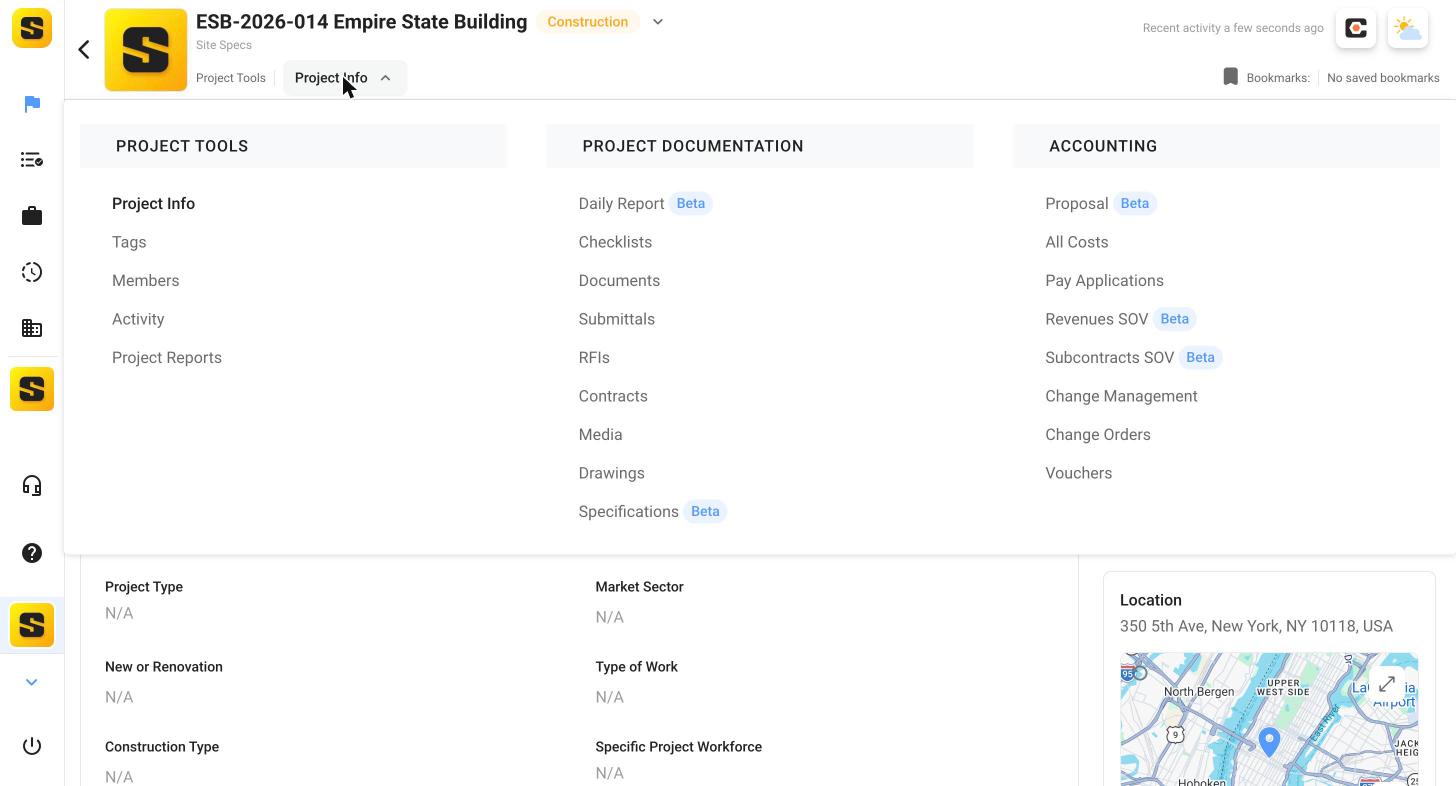
To open Project Info in one click, hover over it in the Project Tools menu and click the bookmark icon next to it. It's added to the Bookmarks bar at the top right of the project.
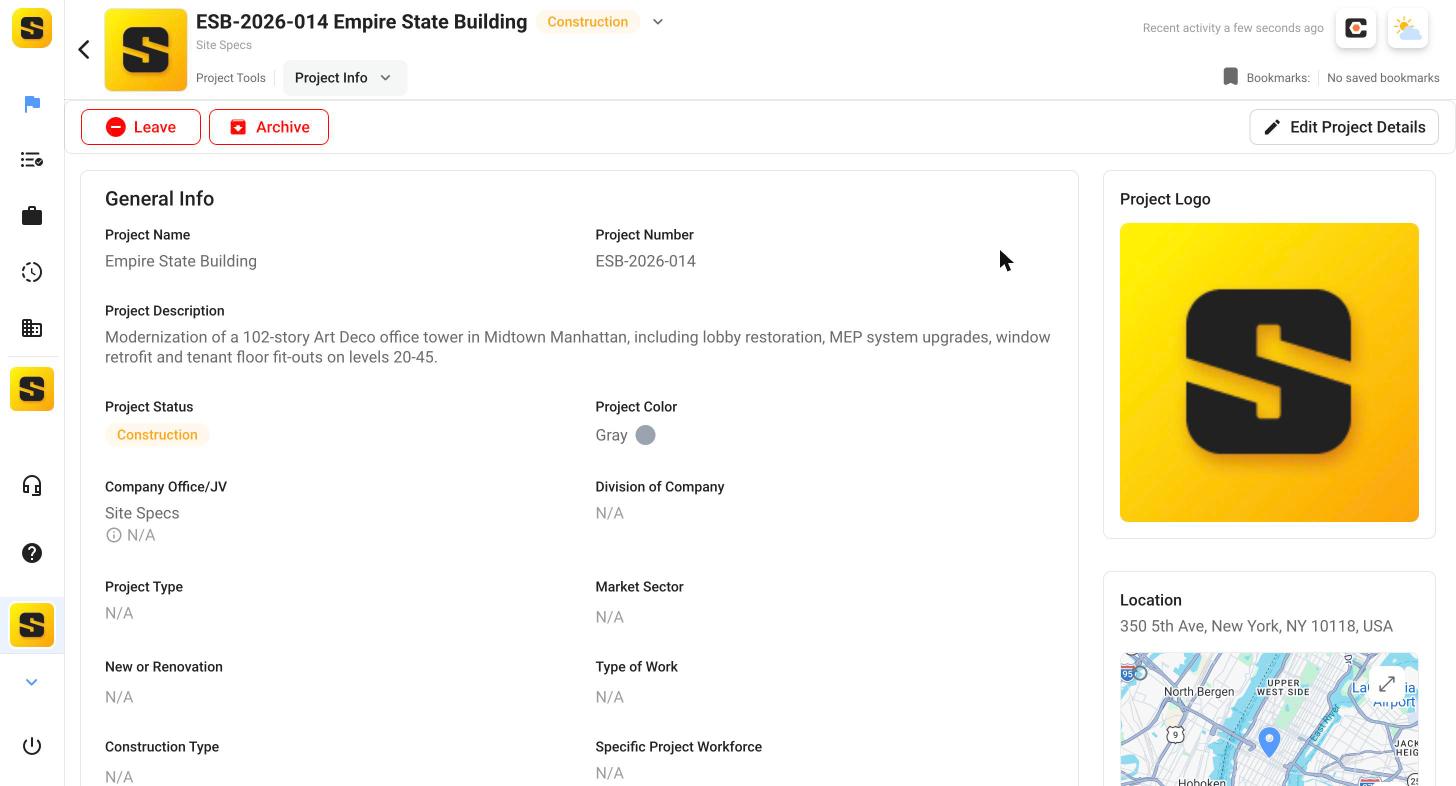
What's on the page
General Info
| Field | Description |
|---|---|
| Project Name | The project's name. Required. |
| Project Number | Your company's number for the project. |
| Project Description | A description of the project's scope of work. |
| Project Status | The project's current stage, such as Construction. Also shown next to the project name at the top of every project page. |
| Project Color | The color used to identify the project. |
| Company Office/JV | The company office or joint venture running the project. Its address is shown below the field. |
| Division of Company | The division the project belongs to. |
| Project Type, Market Sector, New or Renovation, Type of Work, Construction Type, Delivery Method | Classifications for the project. Market Sector accepts more than one value. |
| Specific Project Workforce | Whether the project has a specific workforce requirement (Yes or No). |
| Substantial Completion Date | The date the project reaches substantial completion. |
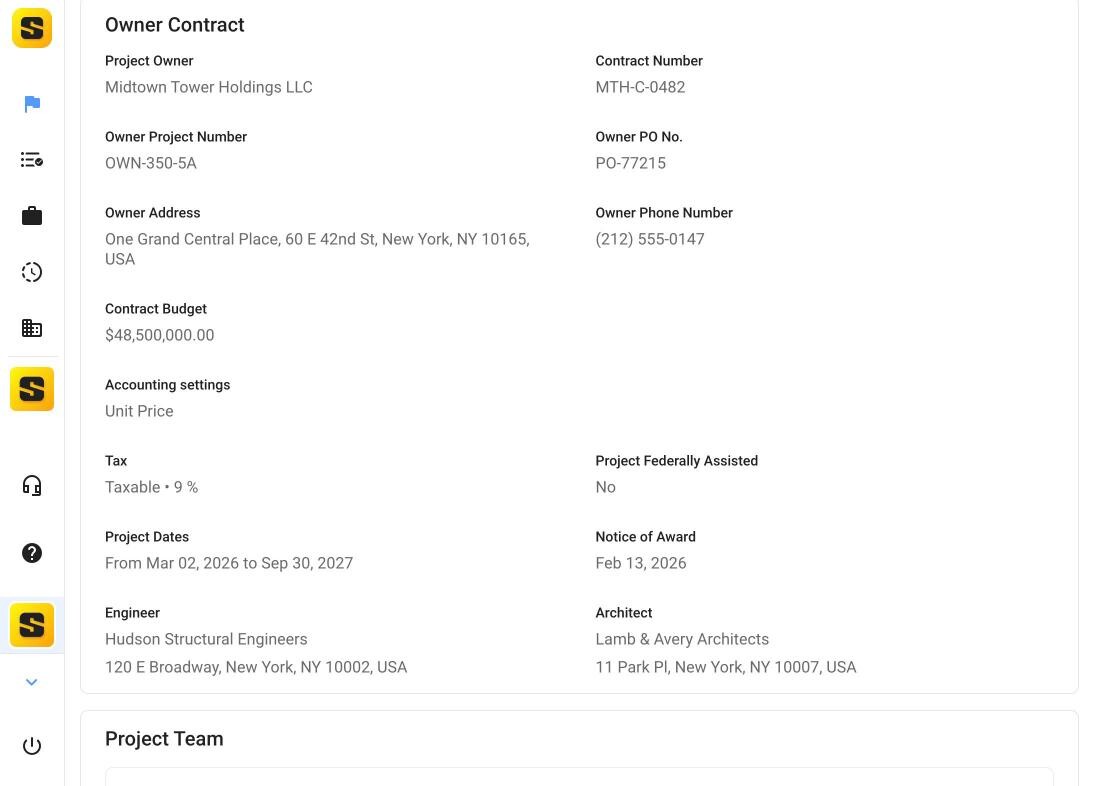
Owner Contract
| Field | Description |
|---|---|
| Project Owner | The project's owner. |
| Contract Number, Owner Project Number, Owner PO No. | The owner's reference numbers for the contract and project. |
| Owner Address, Owner Phone Number | The owner's contact details. |
| Contract Budget | The contract value. |
| Accounting settings | How the contract is billed, for example Unit Price. |
| Tax | Whether the project is Taxable or Nontaxable. |
| Project Federally Assisted | Whether the project receives federal assistance (Yes or No). |
| Project Dates | The project's start and end dates. |
| Notice of Award | The notice of award date. |
| Engineer, Architect | The name and address of the project's engineer and architect. |
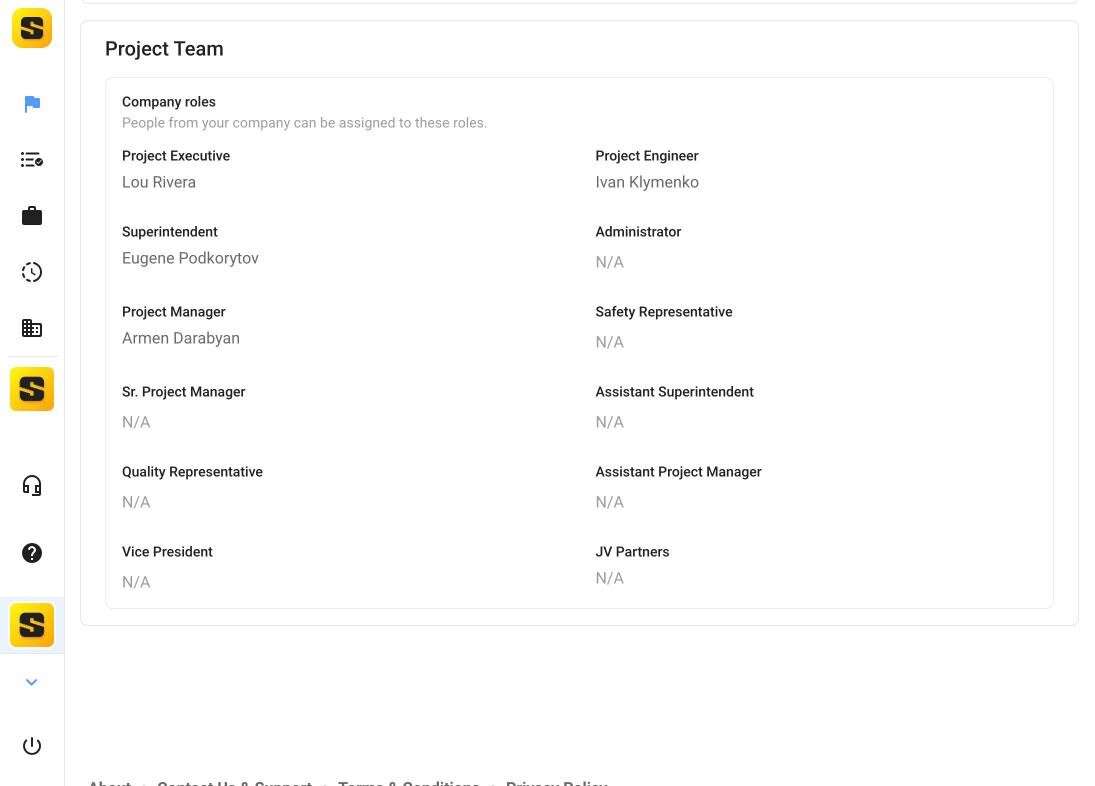
Project Team
The Project Team section lists who fills each role on the project. Under Company roles, people from your company can be assigned to Project Executive, Project Manager, Sr. Project Manager, Assistant Project Manager, Superintendent, Assistant Superintendent, Project Engineer, Administrator, Safety Representative, Quality Representative, Vice President and JV Partners. Roles nobody is assigned to show N/A.
Some projects also have a Project roles group, where members of the project can be assigned to Engineer, Architect, Owner and Subcontractor.
A role can have more than one person assigned to it.
Project Logo
The logo shown at the top of the project pages.
Location
The project's address, shown on a map. Below it, Automated Location Details are filled in automatically from the location:
- Nearest Weather Station: used for the project's weather data.
- Project Time Zone: the project's time zone and its current local time.
Editing project details
- Open Project Info.
- Click Edit Project Details at the top right.
- Update the fields you need. To set the location, enter the address or move the pin on the map.
- Click Save Changes. To discard your changes, click Cancel.
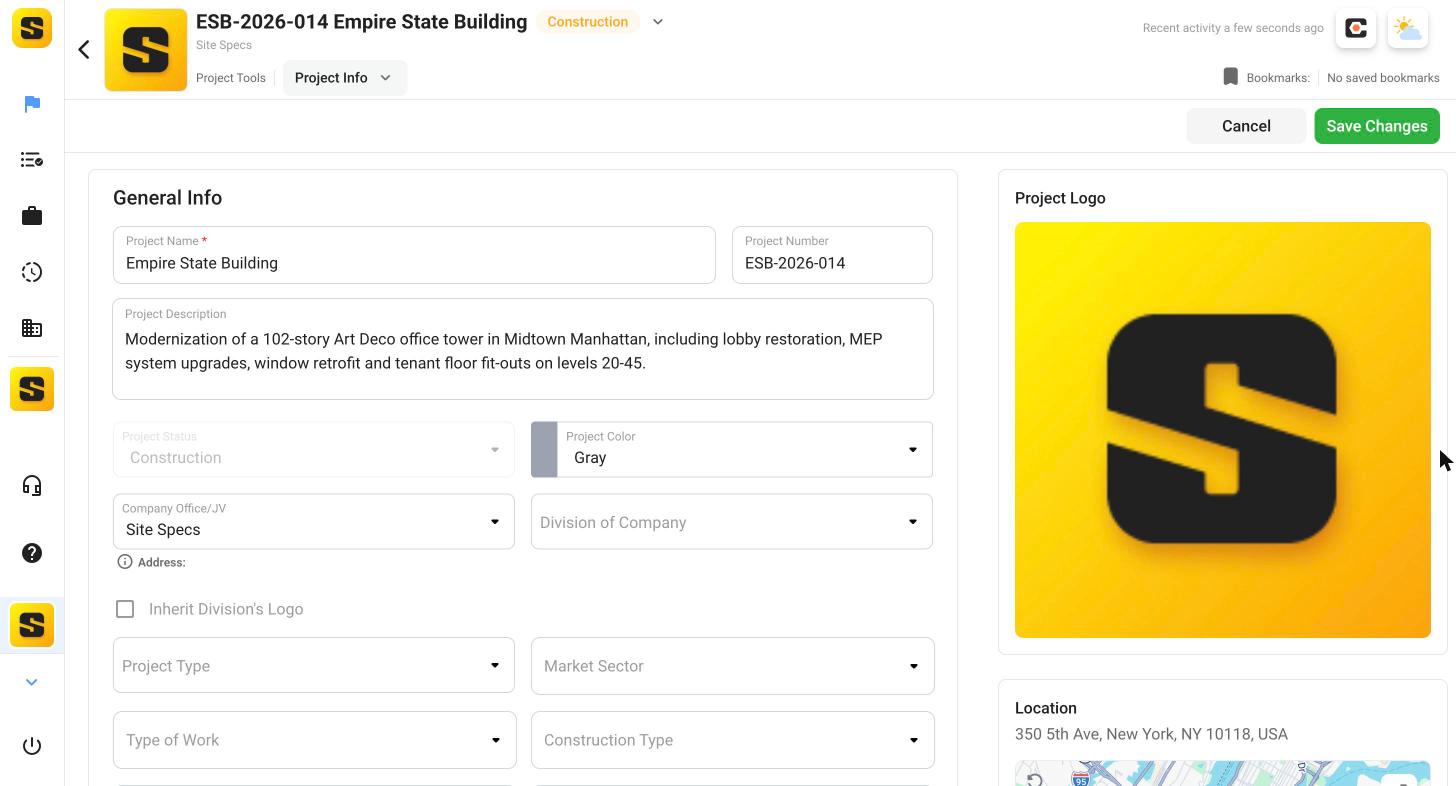
Project Status can't be changed from the Edit Project Details form.
Check Inherit Division's Logo to use your division's logo as the project logo instead of uploading one.
Leaving or archiving a project
The Leave and Archive buttons are at the top left of the Project Info page.
- Leave removes you from the project's members. You'll need to join or be invited again to get back in.
- Archive archives the project for everyone. Archived projects no longer appear in project lists. See Archived Projects to find them.