Overview
Activity is a timeline of everything that happens on your projects: who did what, on which project, and when. Use it to catch up on recent work, follow up on a specific person or vendor, or look back at what happened on a given day.
Where to find activity
| Where | What it shows |
|---|---|
| Activity page (web) | Activity across all projects you're a member of. With permission, activity across your whole company. |
| Project Activity tab (web) | Activity on a single project. |
| Activity tab (mobile) | Activity across all projects you're a member of. |
| Recent Activity (mobile project details) | The latest activity on a single project, with a link to the full timeline. |
See Viewing Activity for step-by-step instructions.
What's in an activity card
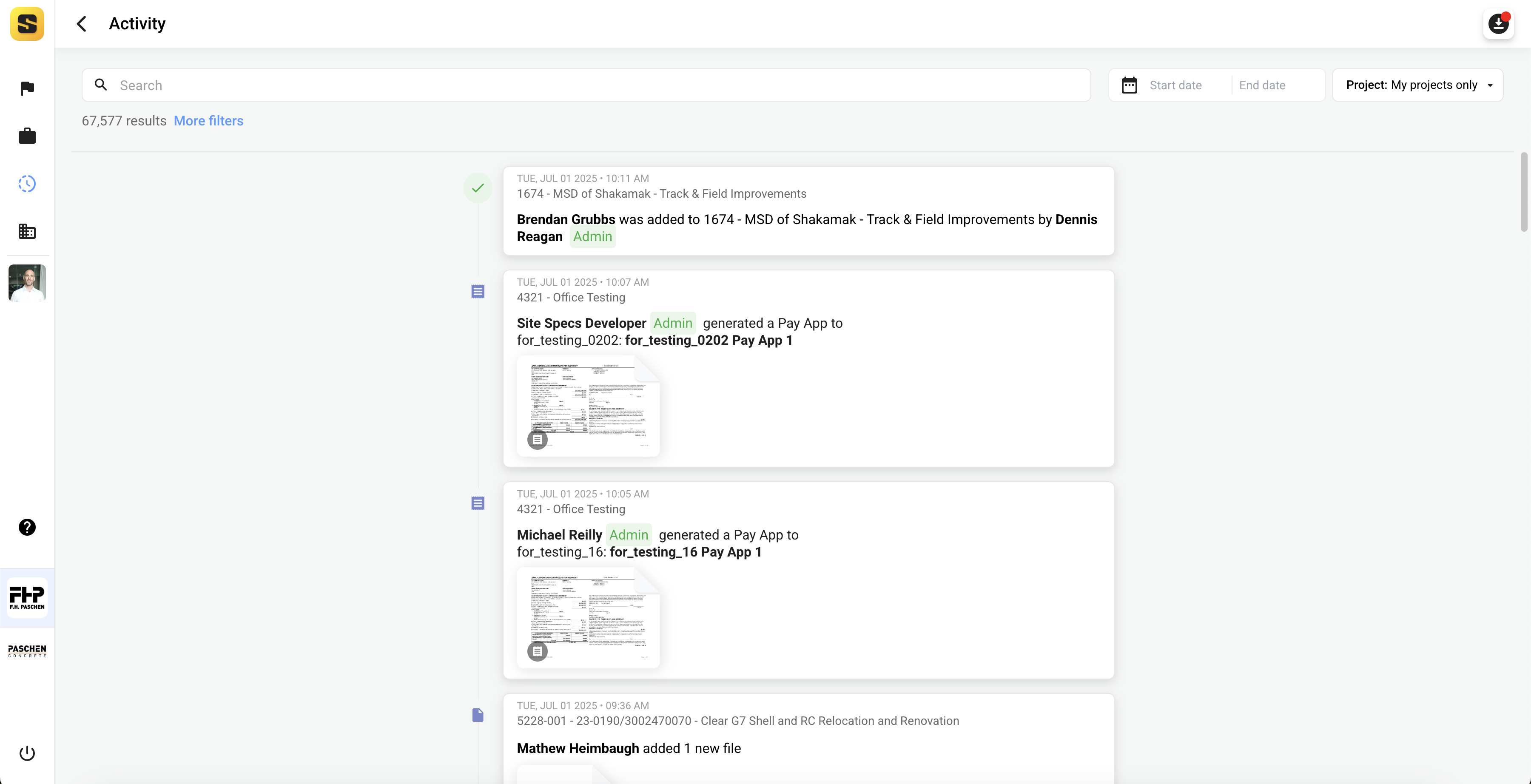
Each item in the timeline is a card that shows:
- Date and time the activity happened.
- Project it happened on.
- What happened and who did it. For example, "added 1 new photo", "generated a Pay App" or "was added to the project". An Admin badge appears next to company admins.
- A preview of photos, documents and reports, when there is one.
An icon on the left of each card shows the type of activity. Click any card to open the details of that activity.
What gets recorded
Activity covers the tools across Site Specs, including photos, files and documents, daily reports, checklists, pay applications, change orders, weather forecasts, and project membership changes such as join requests, members being added, and projects being archived or unarchived.
To narrow the timeline to the activity you care about, see Searching and Filtering.