Applying Tags
You can tag photos as you take them in the mobile app, or tag photos and documents after they've been uploaded. You can apply multiple tags to each item.
With the Site Specs camera
The Site Specs camera in the mobile app uses your project's tags, so you can label photos as you walk the job site.
- Tags carousel: Above the capture button, tap tags in the carousel for quick access.
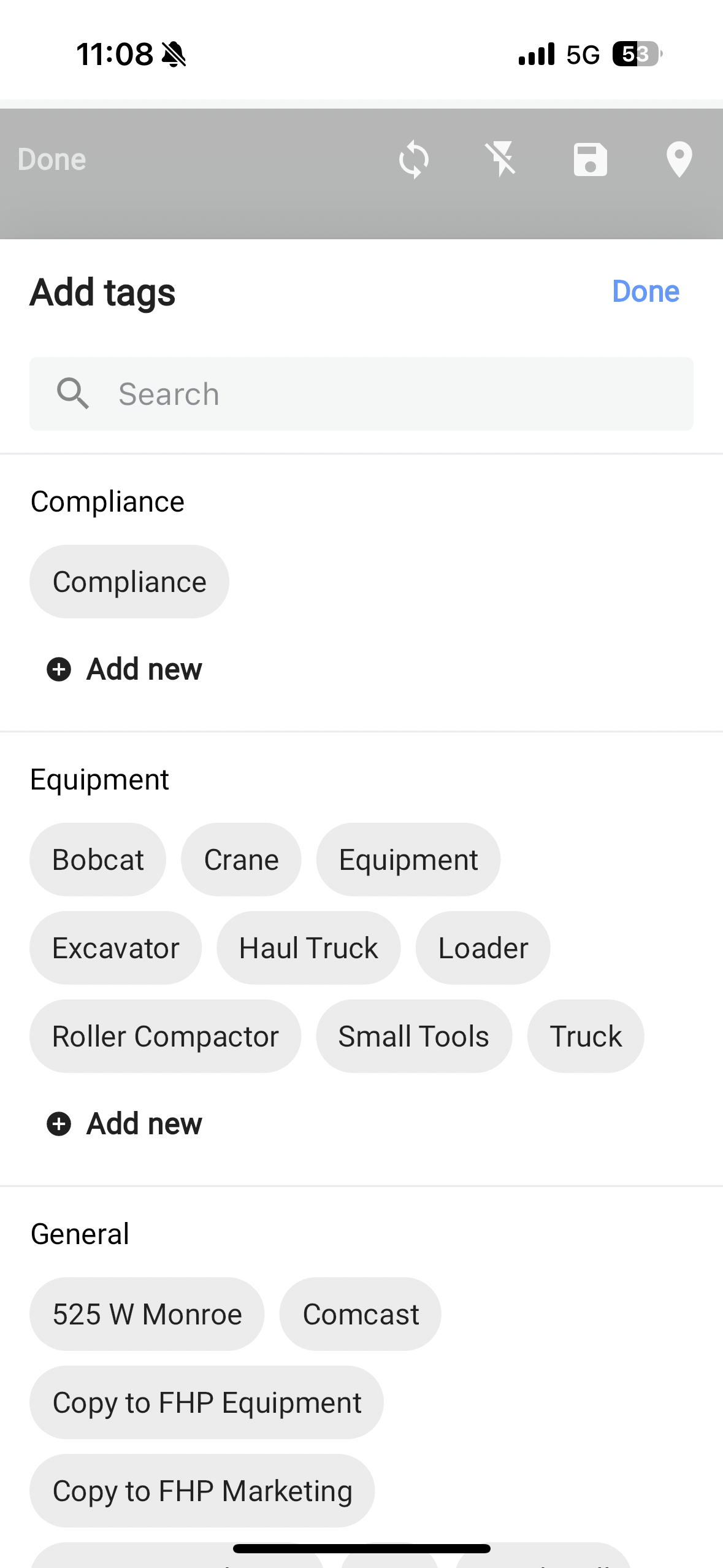
- Tags button: Opens the full tag list. You can also create new tags here during the camera session.
Selected tags are applied to every photo you take after selecting them, until you change the selection or finish the session. Pick your tags before you start shooting a series of photos of the same area or trade.
For more about the camera, see Project Photos.
When uploading photos
When you upload photos on the web with Add new photo, or from your device's library in the mobile app, you can add tags before the upload finishes.
After uploading
Tags can be added to any photo or document that is already in Site Specs. Open the item and add the tags you need.
Finding items by tag
Use tags to filter the project's photos:
- Web: Use the filters on the Photos page to filter by manual tags and auto-tags, along with users and checklist templates.
- Mobile: Use the photo filters to filter by tags, auto-tags, users and checklists.
Auto-tags are added automatically, so filtering by them works even on photos nobody tagged by hand.