Searching and Filtering
The Activity timeline can hold a lot of history. Use search, filters and dates to find exactly what you need. The number of matching results is shown above the timeline.
These options are the same on the company Activity page and on a project's Activity tab.
Show the filters
Click More filters below the search bar to open the filter panel. Click Hide filters to close it.
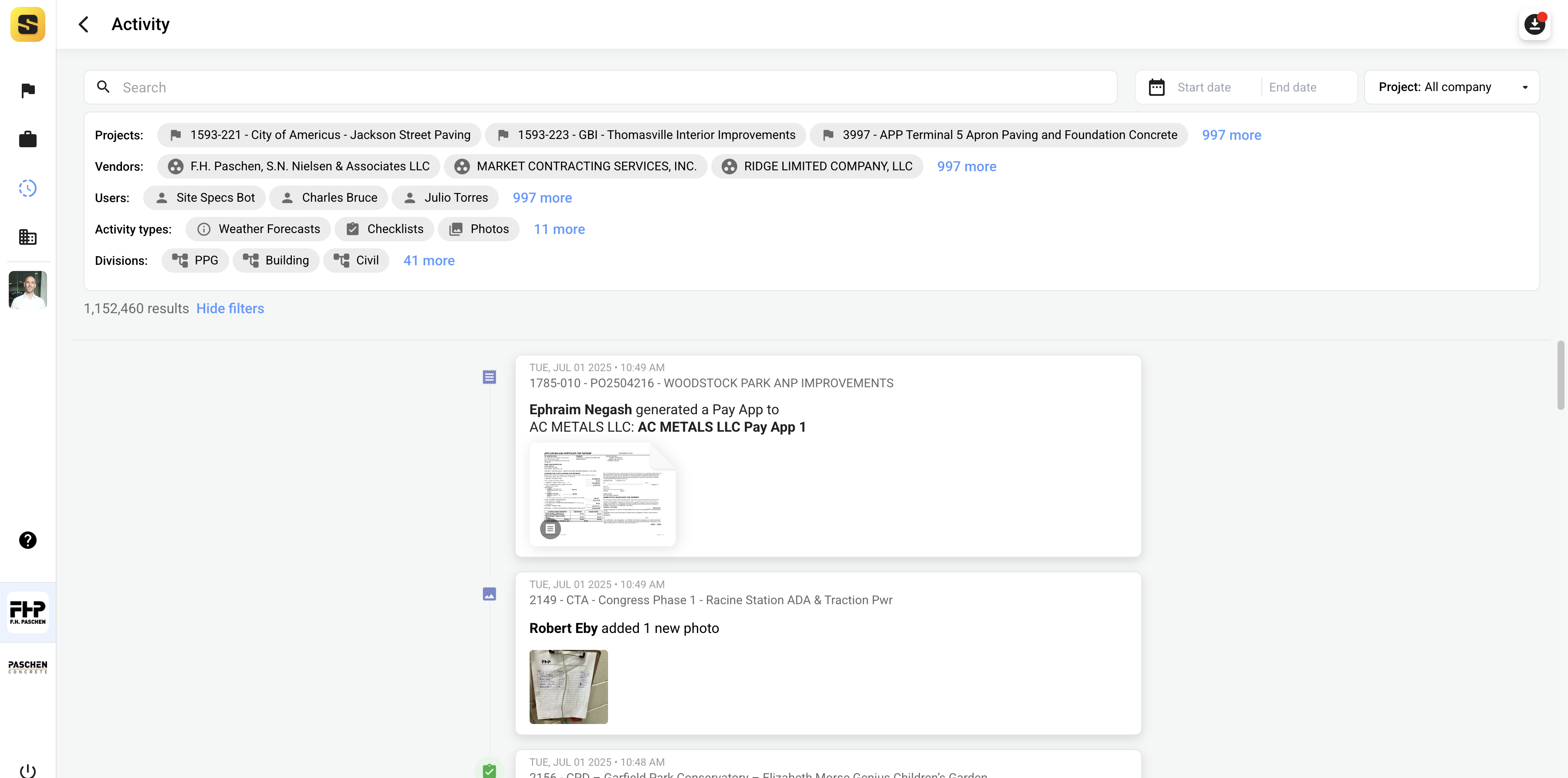
The panel groups filters by:
| Filter | Narrows activity to |
|---|---|
| Projects | Specific projects. |
| Vendors | Activity involving specific vendors. |
| Users | Activity by specific people. |
| Activity types | Specific kinds of activity, such as photos, checklists, reports, change orders or weather forecasts. |
| Divisions | Projects in specific company divisions. |
Each group shows the most relevant options first. Click more at the end of a row to see the rest.
Find a filter quickly
Start typing in the search bar. The filter panel updates to show only the projects, vendors, users, activity types and divisions that match what you typed.
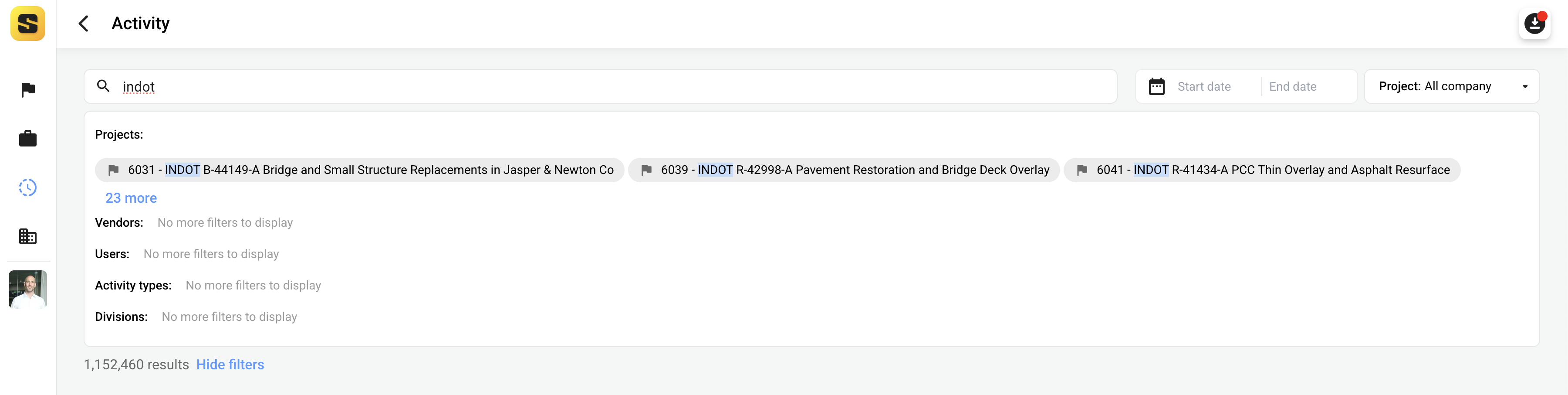
Apply filters
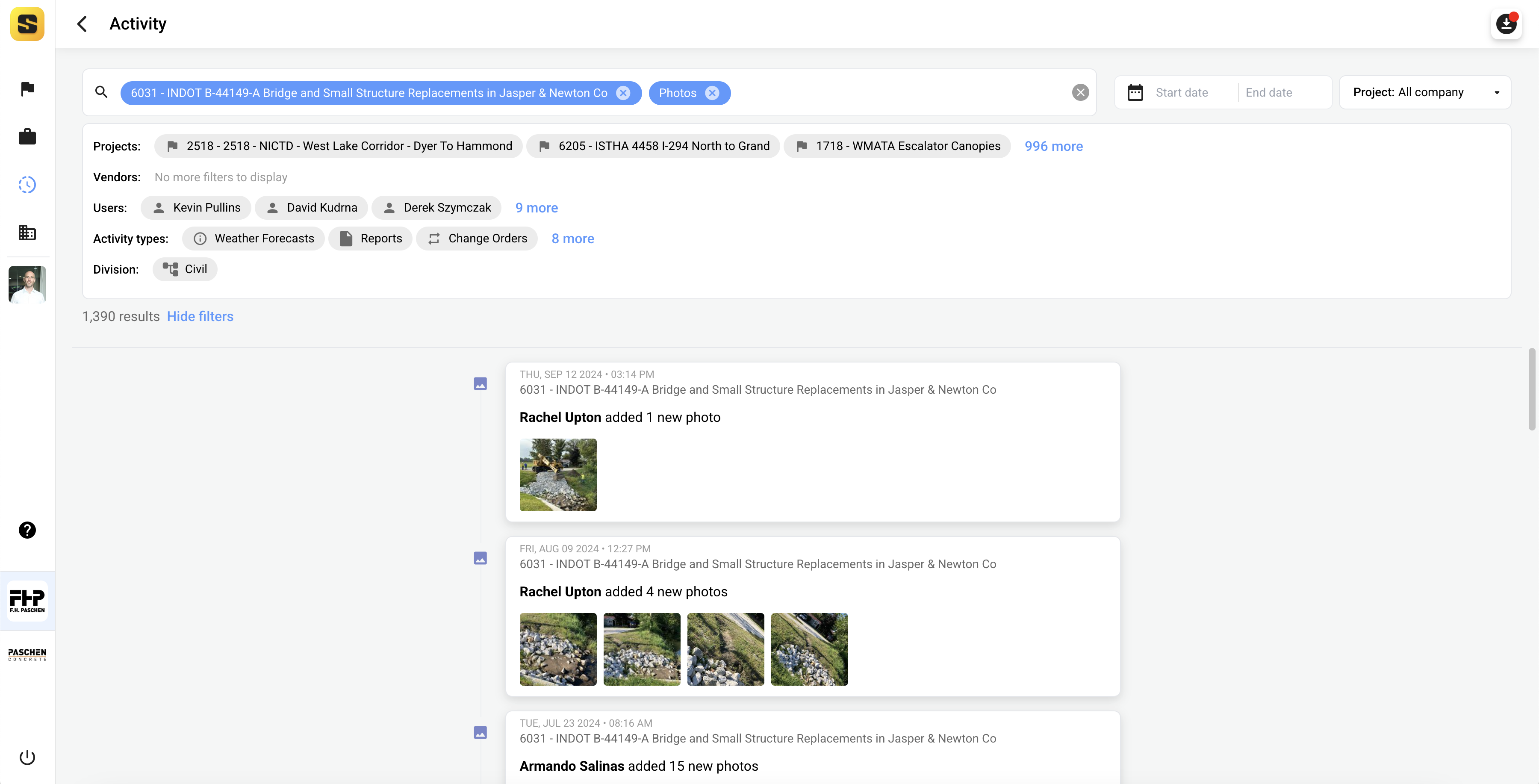
- Click a filter option to apply it. It appears as a chip in the search bar.
- Add as many filters as you need. For example, choose a project and the Photos activity type to see only photos added to that project.
- To remove a filter, click the x on its chip. To clear all filters, click the x at the right end of the search bar.
Filter by date
Set a Start date and End date next to the search bar to see only activity within that date range.
Mobile
In the mobile app, the Activity tab also has search and filters to help you find specific activity.