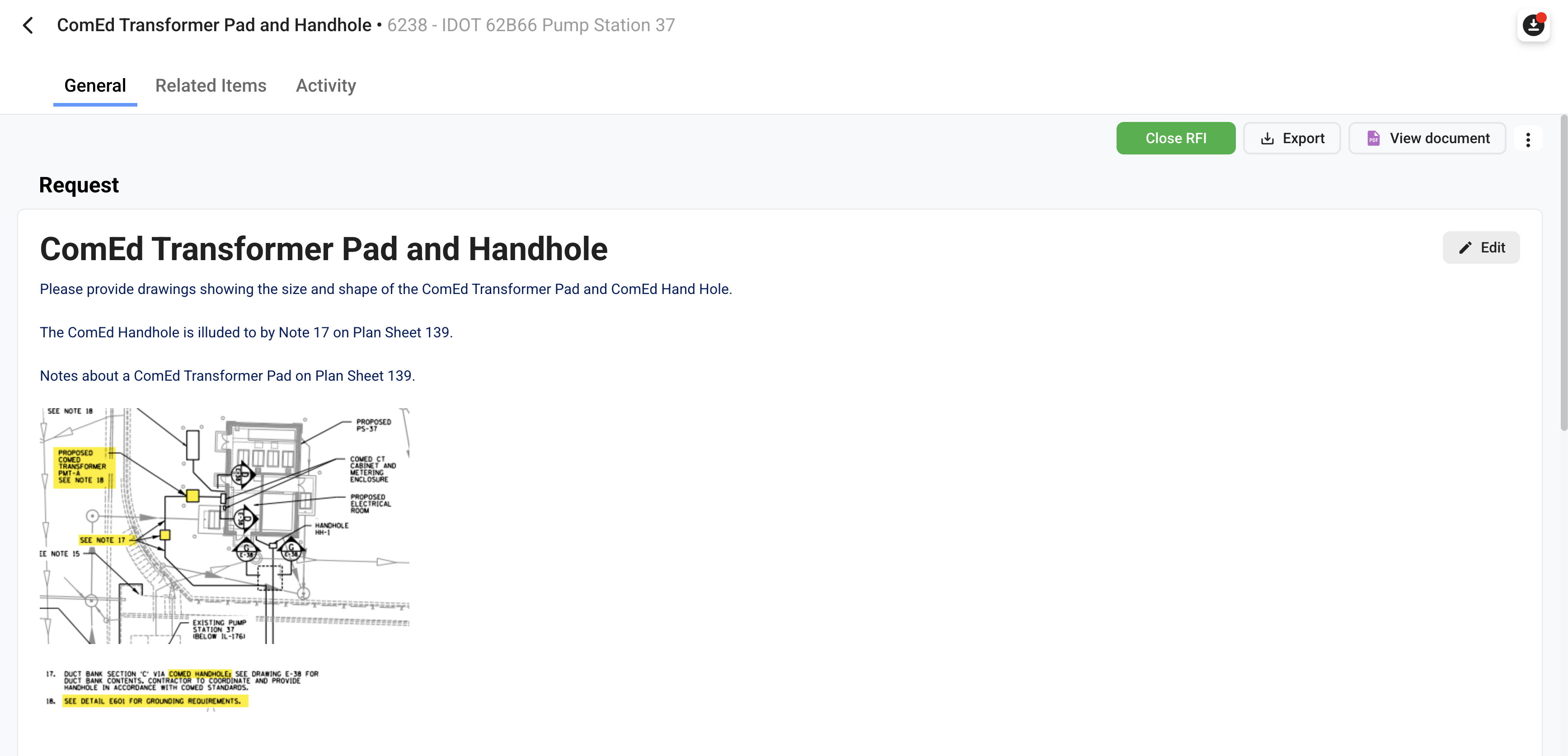
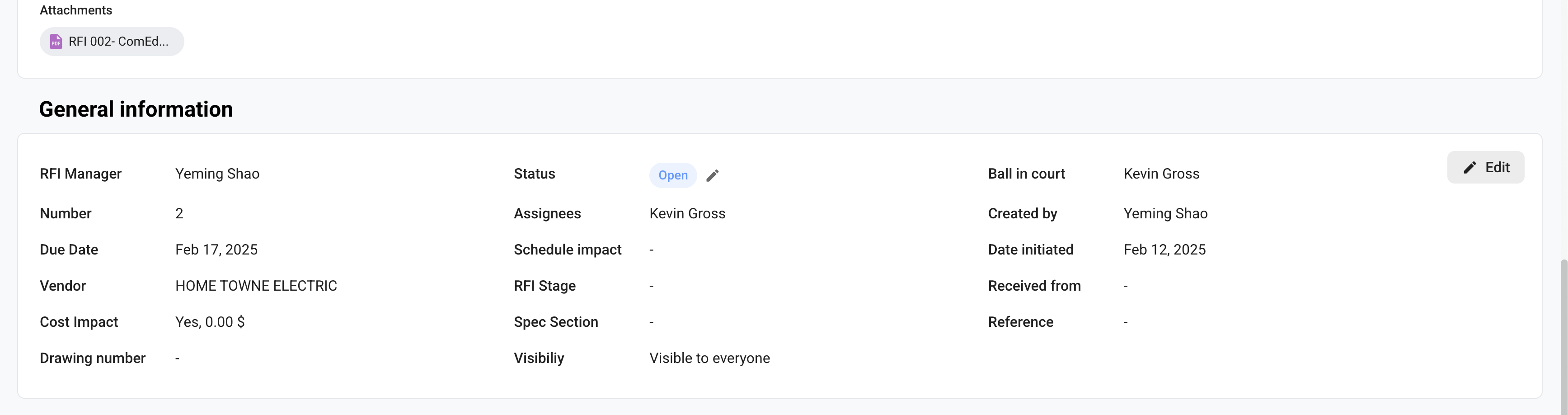
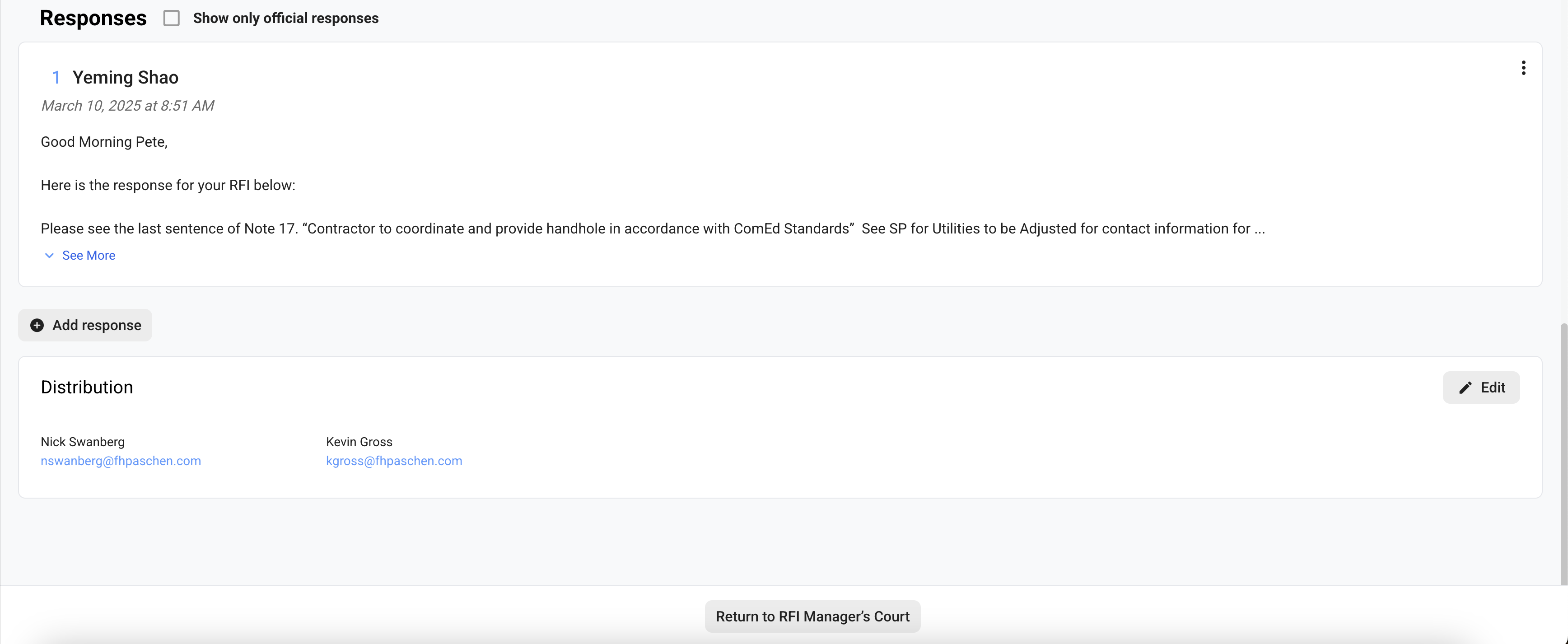
Creating an RFI
To create an RFI:
- Open the project's RFIs section.
- Click Create New RFI.
- Enter the RFI subject and describe the question.
- Attach relevant documents or drawings if needed.
- Complete the general information, including the RFI number, manager, vendor, due date, and other relevant details.
- Assign the people responsible for providing a response.
- Add people to the Distribution list if they should receive notifications and updates.
- Choose whether the RFI should be visible to everyone or only to administrators and workflow participants.
Each RFI has three sections: Request, General Info, and Distribution.
Request
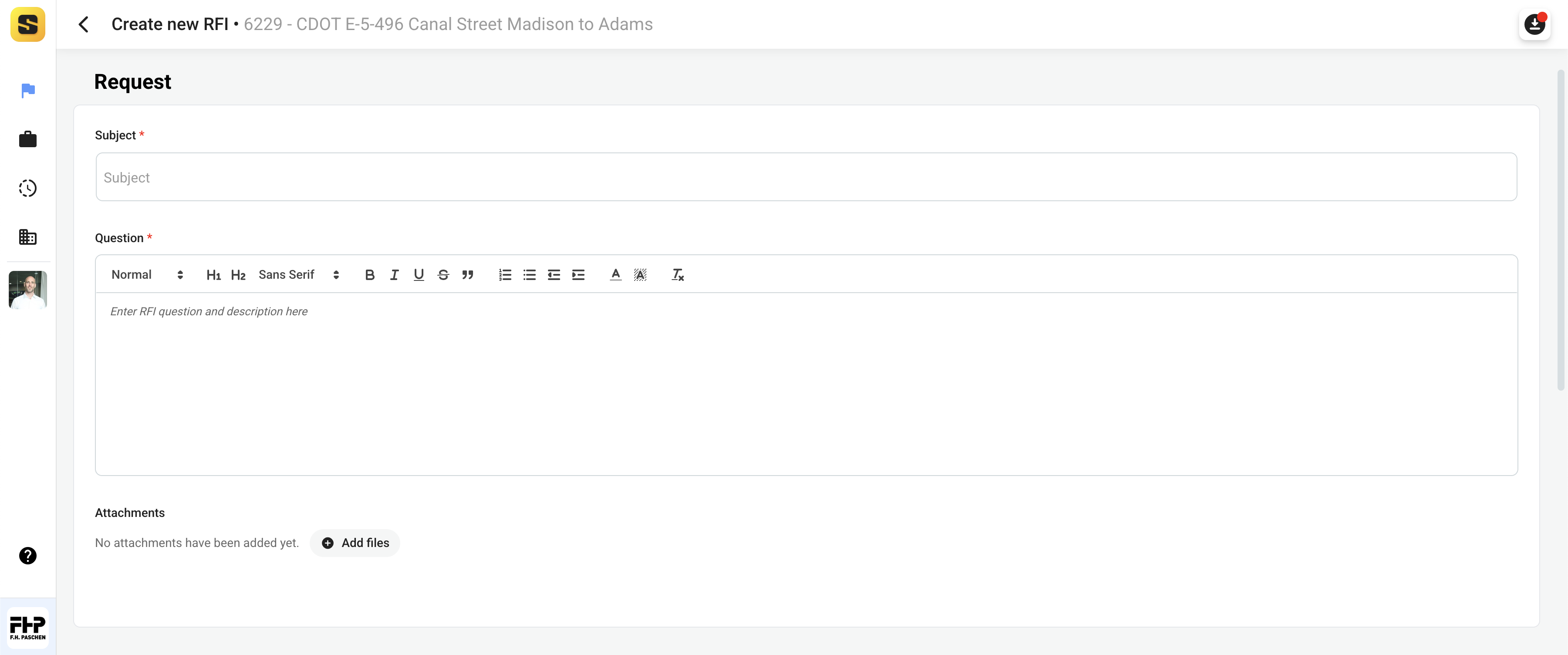
- Subject: A short, concise title that is descriptive enough to easily recognize the issue.
- Question: The clarification you need. A good question:
- Tells the assignee where to look, such as the exact location in the specifications or drawings.
- States the discrepancy or field issue concisely.
- Tells the assignee how to respond, for example "Please advise" or "Please confirm".
- Notes whether the response may impact cost or schedule.
- Attachments: Supporting documents, sketches, photos, or drawings. Label attachments with a description of what is included.
General Info
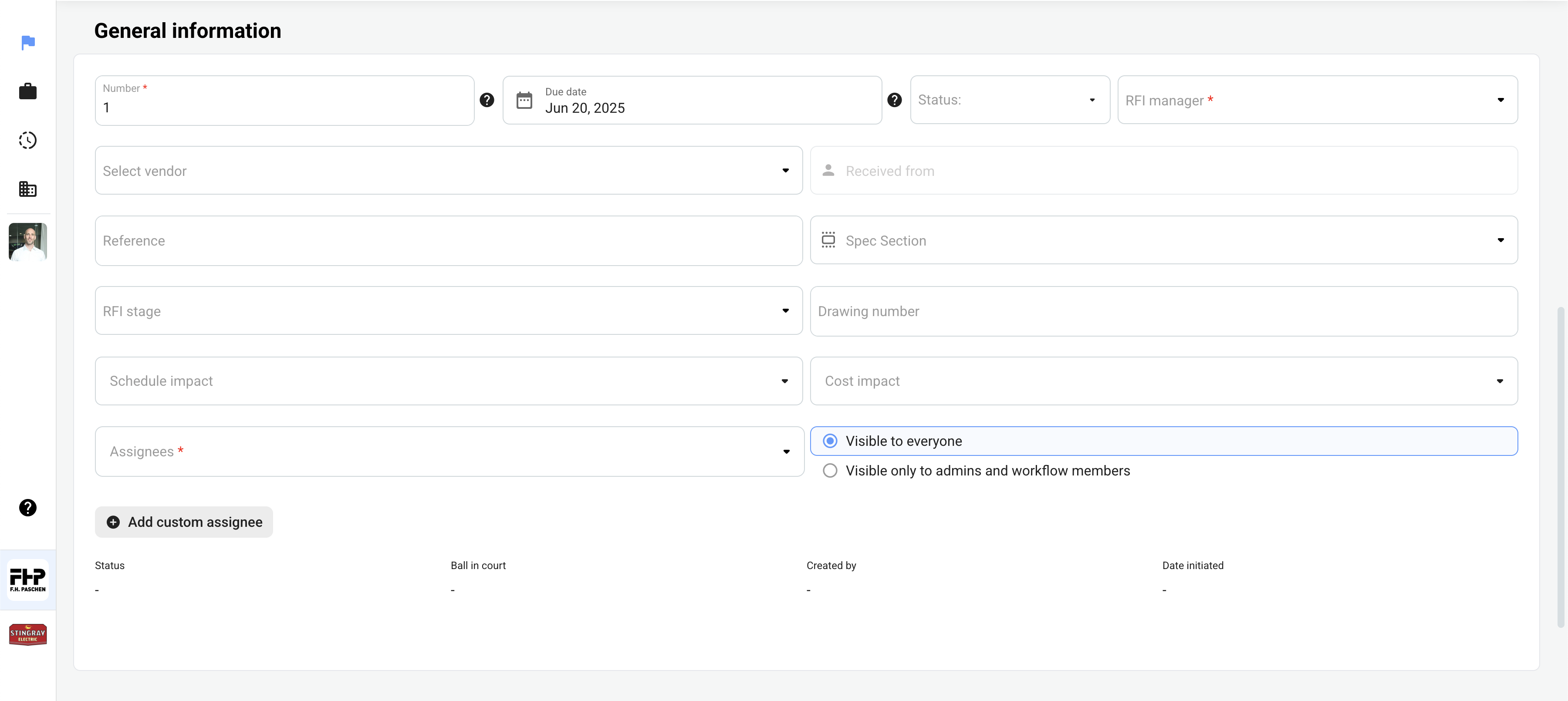
- Number: RFI identification number, typically sequential.
- Due Date: Date responses are due.
- Status: Status of the RFI (Draft, Open, or Closed).
- RFI Manager: Project member responsible for tracking the RFI and managing its status.
- Assignees: People responsible for answering the RFI.
- Vendor: Vendor the RFI originated from or whose scope it pertains to.
- Received From: The project member or vendor contact the RFI originated from.
- Reference: Custom text field for any helpful references.
- Spec Section: Specification section the RFI pertains to.
- RFI Stage: Stage of the project life cycle the RFI originated in.
- Drawing Number: Drawing the RFI pertains to.
- Schedule Impact: Whether the response will impact the project schedule.
- Cost Impact: Whether the response will impact the project cost or budget.
- Visibility Settings: Which project members the RFI is visible to.
Distribution

The distribution list defines who receives RFI notifications and updates, including the closed RFI and its official response.
Saving the RFI
You have two options:
- Create as Draft: Saves the RFI without sending it to assignees. You can complete or update it later. See Managing Draft RFIs.
- Create as Open: Issues the RFI and sends it to the assigned participants. A due date and at least one assignee are required.
Once created, the RFI appears in the RFIs log.
Example RFI