Creating a Submittal
To create a new submittal:
- Open the Submittals section.
- Click Create new submittal.
- Complete the submittal information.
- Set up the review workflow.
- Add distribution recipients.
- Save the submittal.
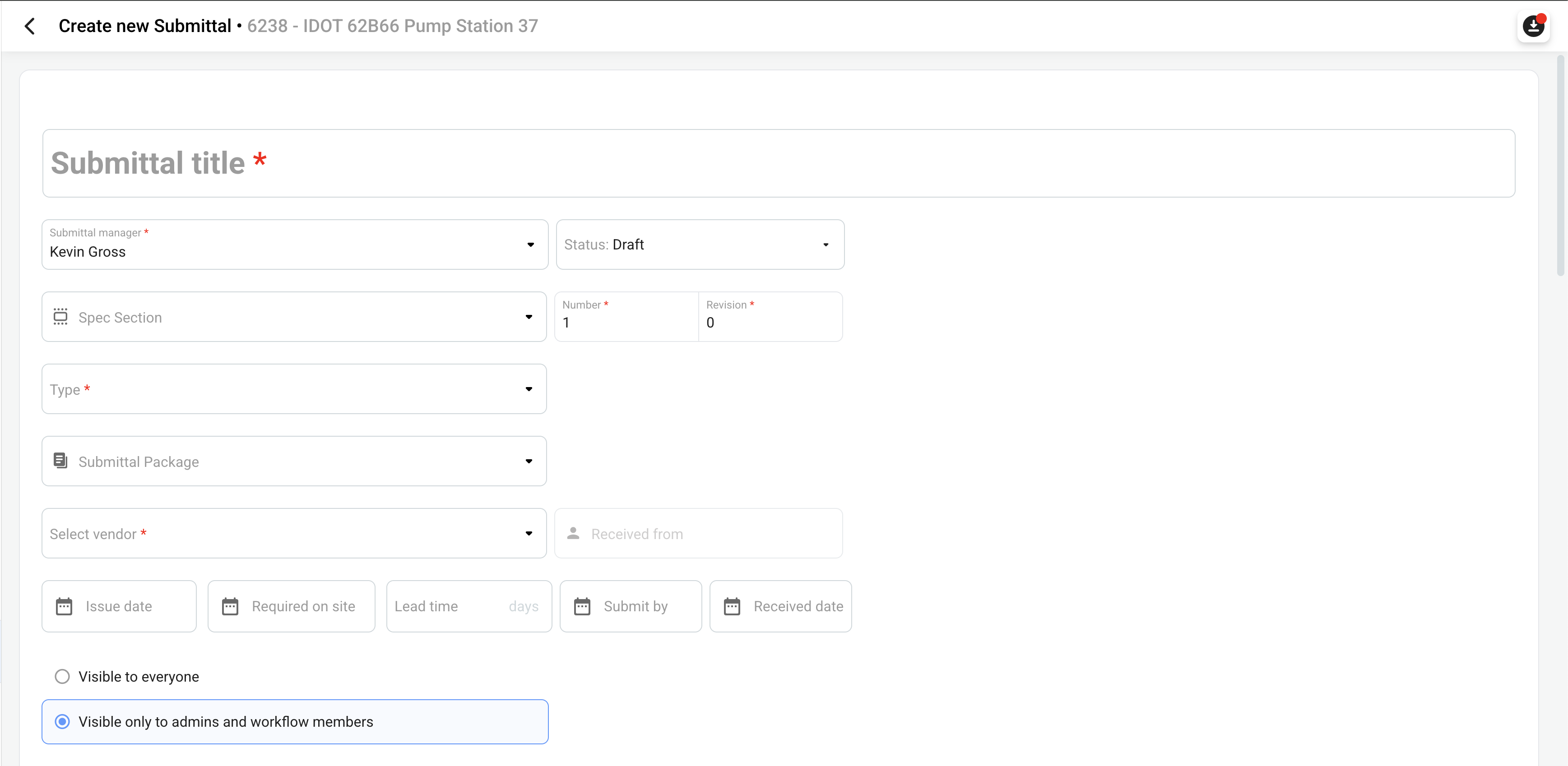
Submittal information
Enter the main details:
- Submittal Title: Name of the item being submitted for review.
- Submittal Manager: Person responsible for managing the submittal.
- Status: Current status of the submittal.
- Spec Section: Related project specification section.
- Number and Revision: Submittal identification number and revision.
- Type: Category of the submittal.
- Vendor: Company providing the submitted materials or documents.
- Received From: Contact person at the selected vendor.
- Dates: Issue date, submission deadline, required-on-site date, and received date.
- Lead Time: Expected delivery or preparation time in days.
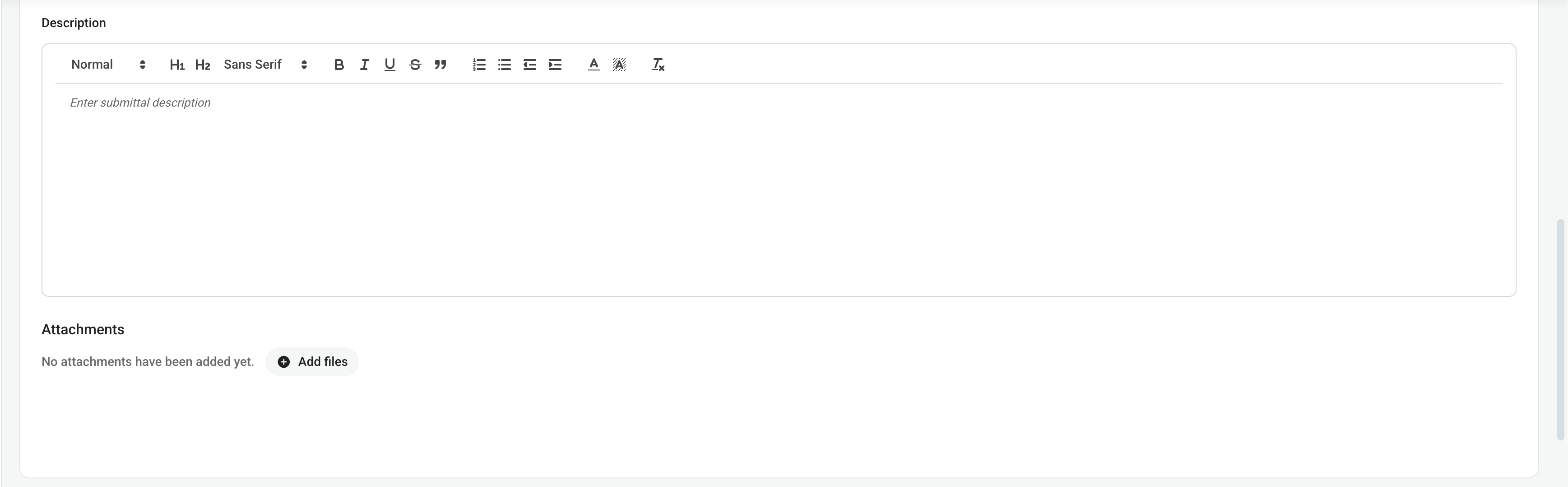
- Description: Additional information about the submittal.
- Attachments: Supporting documents and files.
You can also assign the submittal to a package and specify its visibility.
Adding attachments
You can attach existing project documents or upload new files directly to the submittal.
Uploaded documents are stored in the project's Documents section, making them available for future reference.
Saving the submittal
You have two options:
- Create: Saves the submittal without sending notification emails.
- Create and Send Emails: Saves the submittal and sends notifications to the selected recipients.