Settings
Submittal Settings allow project teams to configure how submittals are managed. Review them before processing any submittals so the defaults are in place for the project.
Available settings include:
- General Settings: Define default managers, review periods, visibility, reminders, and other workflow preferences.
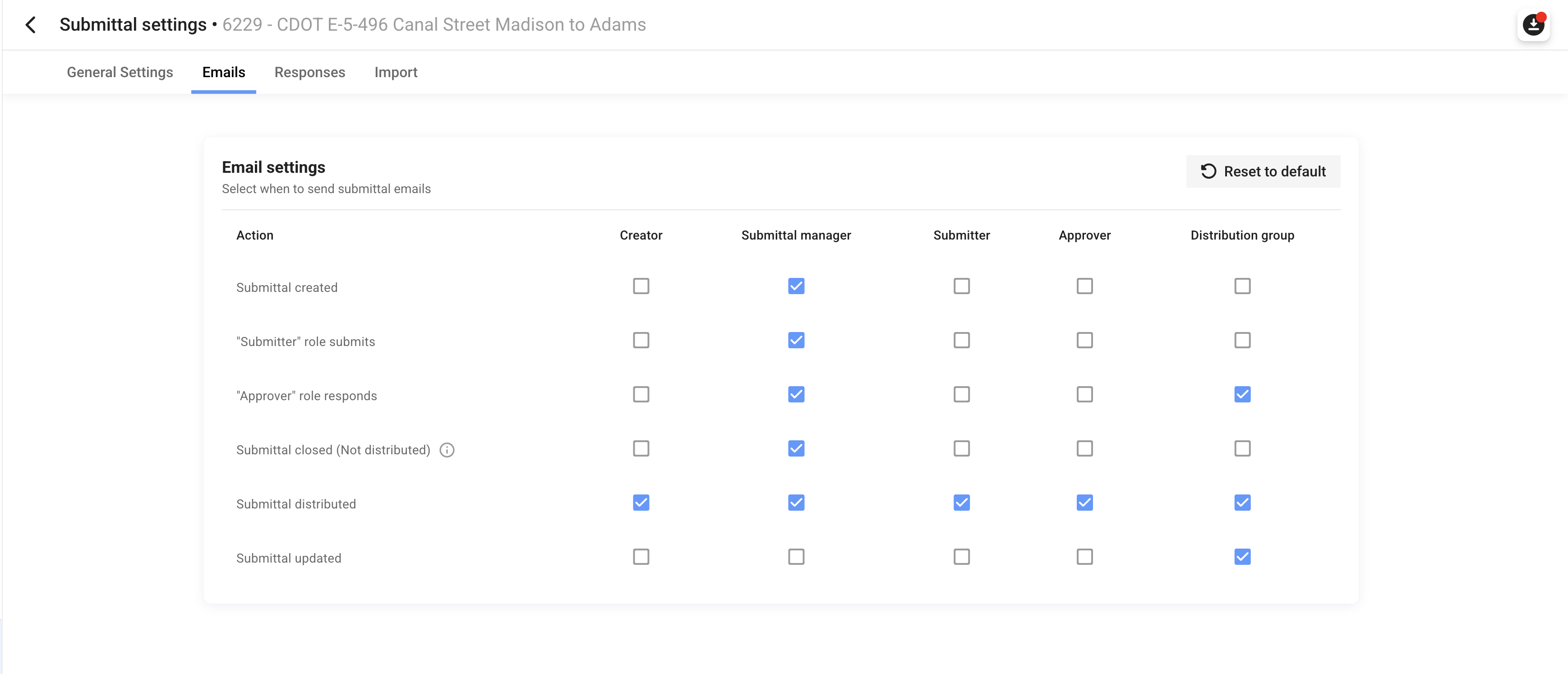
- Email Settings: Configure who receives notifications for different submittal events.
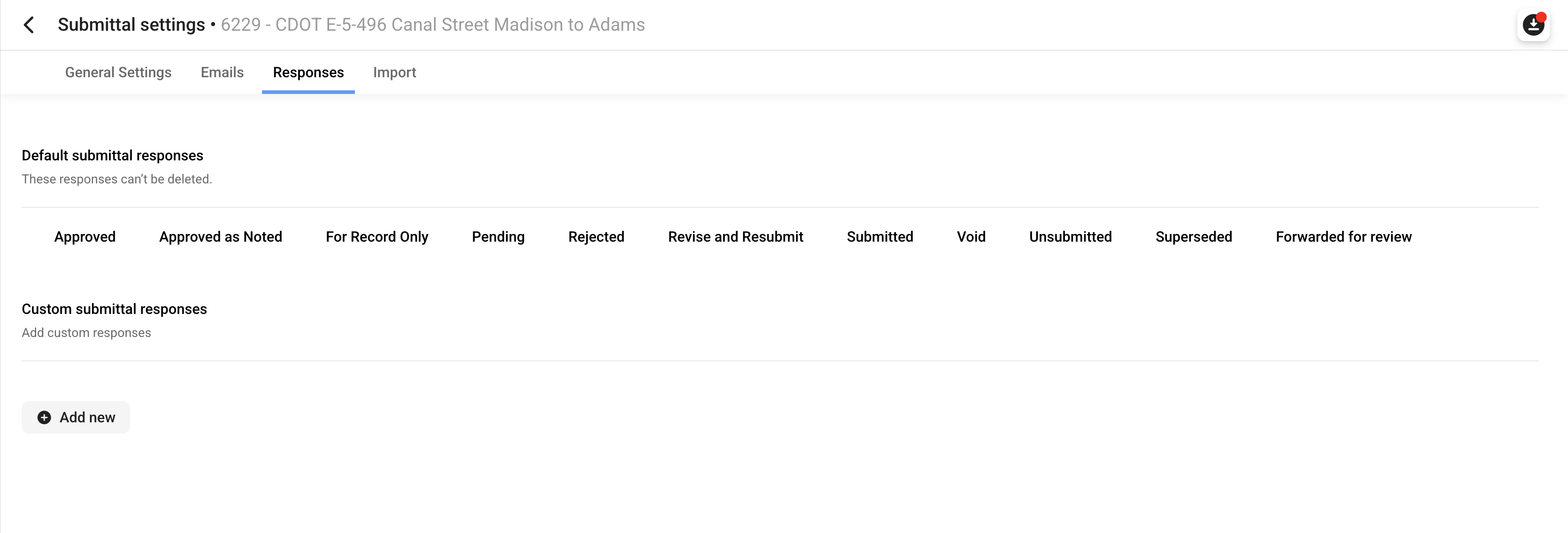
- Responses: Manage custom review responses, including their names, colors, and icons.
- Import: Import multiple submittals using an Excel or CSV template.
- Workflow Templates: Create and manage reusable workflows for future submittals.
These settings help standardize the submittal process across the project.
General Settings
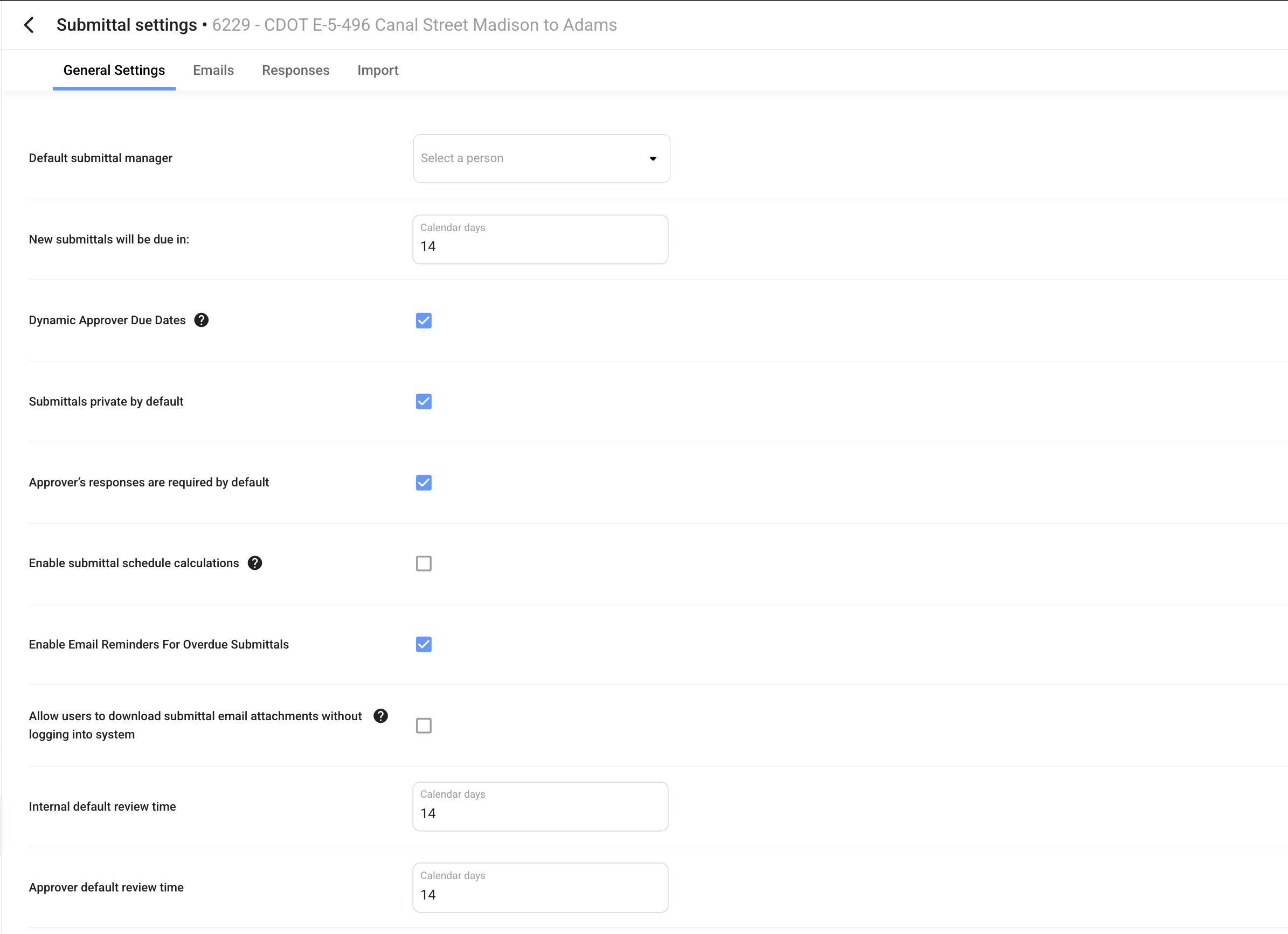
- Default Submittal Manager: Project member assigned as the manager for each new submittal. Submittal managers can respond on behalf of the approvers in the workflow, which is useful if the owner or architect responds by email or in other software.
- New submittals will be due in: The default response due date when submittals are put in review.
- Dynamic Approver Due Dates: Allows due dates to adjust depending on when a workflow step begins.
- Submittals Private by Default: Makes new submittals visible only to the submittal manager and the members included in the workflow and distribution list.
- Approver's Responses are Required by Default: Marks each approver's response as required.
- Enable Submittal Schedule Calculations: Estimates the response due date for each workflow step based on the required-on-site date, lead time, and review time of each submittal.
- Enable Email Reminders for Overdue Submittals: Sends reminder emails to workflow members whose Ball in Court is past due.
- Allow Users to Download Email Attachments Without Logging In: Lets recipients download submittal details and attachments directly from email links without logging into SiteSpecs.
- Internal Default Review Time: Default review time for the project team managing the submittal.
- Approver Default Review Time: Default review time allowed per approver step in the workflow.
Email Settings
Responses
Import
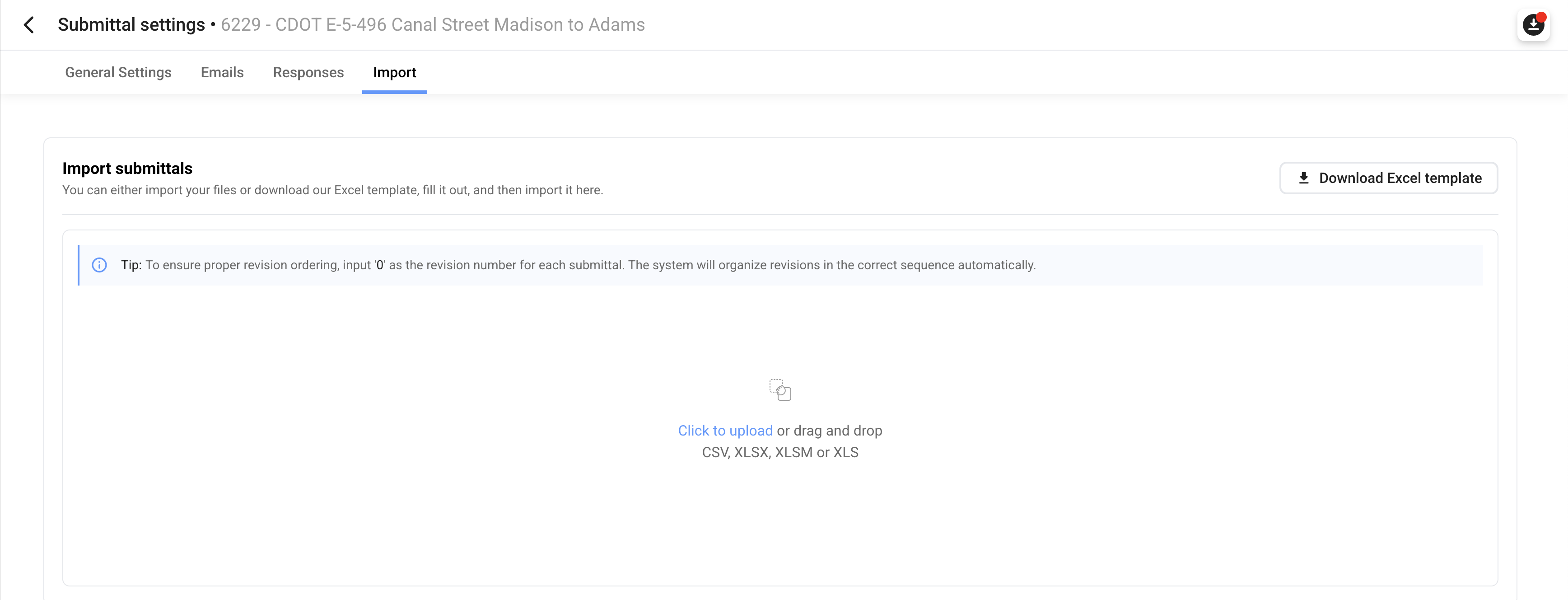
To import a submittal log, click Download Excel Template, fill in the columns as completely and consistently as possible, and upload the file. Not all columns are required.